Best USB-C Hub for MacBook Pro 2026
Modern MacBook Pros dropped legacy ports, but the right USB-C hub brings them back plus adds power delivery and display outputs you actually need.
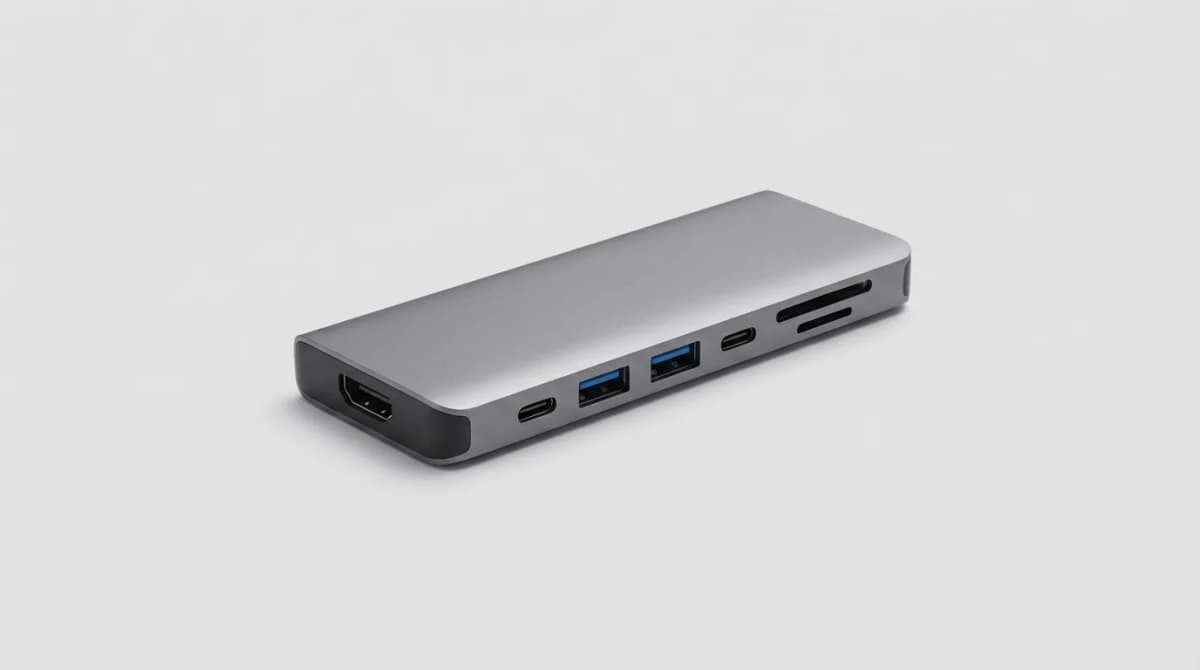
Your MacBook Pro has three or four USB-C ports, depending on the model. That sounds like plenty until you plug in a monitor, an external drive, and a charging cable. Now you're out of ports and stuck choosing between your mouse or your backup drive.
Quick Picks
Our top recommendations at a glance:
- 1
- 2
- 3
- 4
- 5
A good USB-C hub solves this by turning one port into six, eight, or even twelve connections. But not all hubs are equal. Some throttle data speeds, others cause your Mac to run hot, and cheap ones fail within months. The difference between a decent hub and a great one comes down to chipset quality, power delivery capacity, and thermal design.
We compared fifteen hubs on data transfer speeds, heat management, and connection stability. Here's what actually works.
What to Look for in a MacBook Pro USB-C Hub
Port count matters, but port quality matters more. A hub with ten ports sounds impressive until you realize half of them share bandwidth and slow down when used simultaneously. Look for hubs that clearly specify which ports have dedicated lanes and which share bandwidth.
Power delivery is critical. Your hub should pass through at least 85W to your MacBook Pro, ideally 100W. Anything less means your laptop charges slowly or not at all under load. Check the spec sheet carefully because some manufacturers advertise 100W input but only deliver 85W to your Mac after the hub takes its cut.
Thunderbolt 4 vs USB-C matters for certain workflows. Thunderbolt 4 hubs cost more but handle dual 4K displays or a single 5K/6K display without compression. They also guarantee 40Gbps bandwidth instead of the 10Gbps or 20Gbps you get with standard USB-C hubs. If you edit video or work with large RAW photo libraries, the speed difference is measurable.
HDMI version affects what resolutions and refresh rates you can push. HDMI 2.0 maxes out at 4K 60Hz. HDMI 2.1 supports 4K 120Hz and 8K 60Hz, which matters for gaming or future-proofing. DisplayPort typically offers better specs than HDMI at the same generation.
Cable length creates a tradeoff. Short built-in cables (4-6 inches) keep your desk tidy but force the hub to sit right next to your Mac, where it can block other ports or create a heat pocket. Longer cables (12+ inches) give you placement flexibility but add clutter.
CalDigit TS4 Thunderbolt 4 Dock
The TS4 is overkill for most people, which is exactly why professionals buy it. Eighteen ports including three Thunderbolt 4 downstream, five USB-A, 2.5Gb Ethernet, SD and microSD card readers, and analog audio in/out. It supplies 98W power delivery to your MacBook Pro while still delivering full power to connected devices.
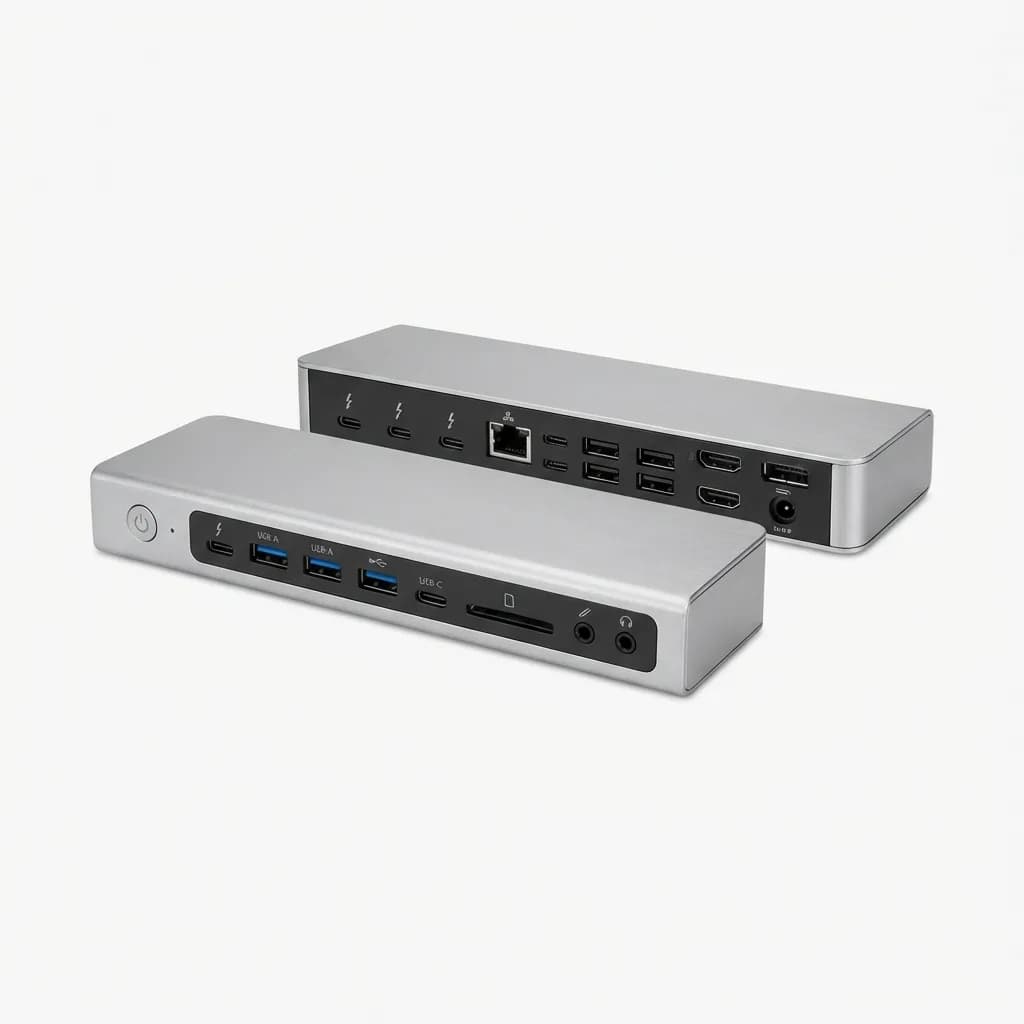
CalDigit TS4 Thunderbolt 4 Dock
$399
18 ports including three Thunderbolt 4 downstream, 98W charging, 2.5Gb Ethernet, dual 4K or single 6K display support. Premium build quality with aluminum housing.
The TS4 runs dual 4K displays at 60Hz or a single 6K display at full resolution, which makes it one of the few hubs that can actually drive an Apple Pro Display XDR at native specs. The 2.5 Gigabit Ethernet port is faster than the 1Gb connections most hubs offer, cutting backup times if you run network storage.
Heat management is excellent. The aluminum chassis acts as a passive heatsink during sustained file transfers.
The Thunderbolt 4 ports deliver full 40Gbps bandwidth each, not shared. You can daisy-chain another Thunderbolt dock or connect an external GPU without bottlenecks. The hub also includes a 0.8m Thunderbolt 4 cable rated for the full 40Gbps spec.
Setup is plug and play on macOS. No drivers, no software, no configuration. It works immediately with all Thunderbolt 4 and Thunderbolt 3 Macs, plus Windows PCs with Thunderbolt 4 ports.
Anker 675 USB-C Docking Station
The Anker 675 takes a different approach: it's both a hub and a monitor stand. The base lifts your display 3.3 inches and includes twelve ports underneath. If you're tight on desk space, combining two functions makes sense.
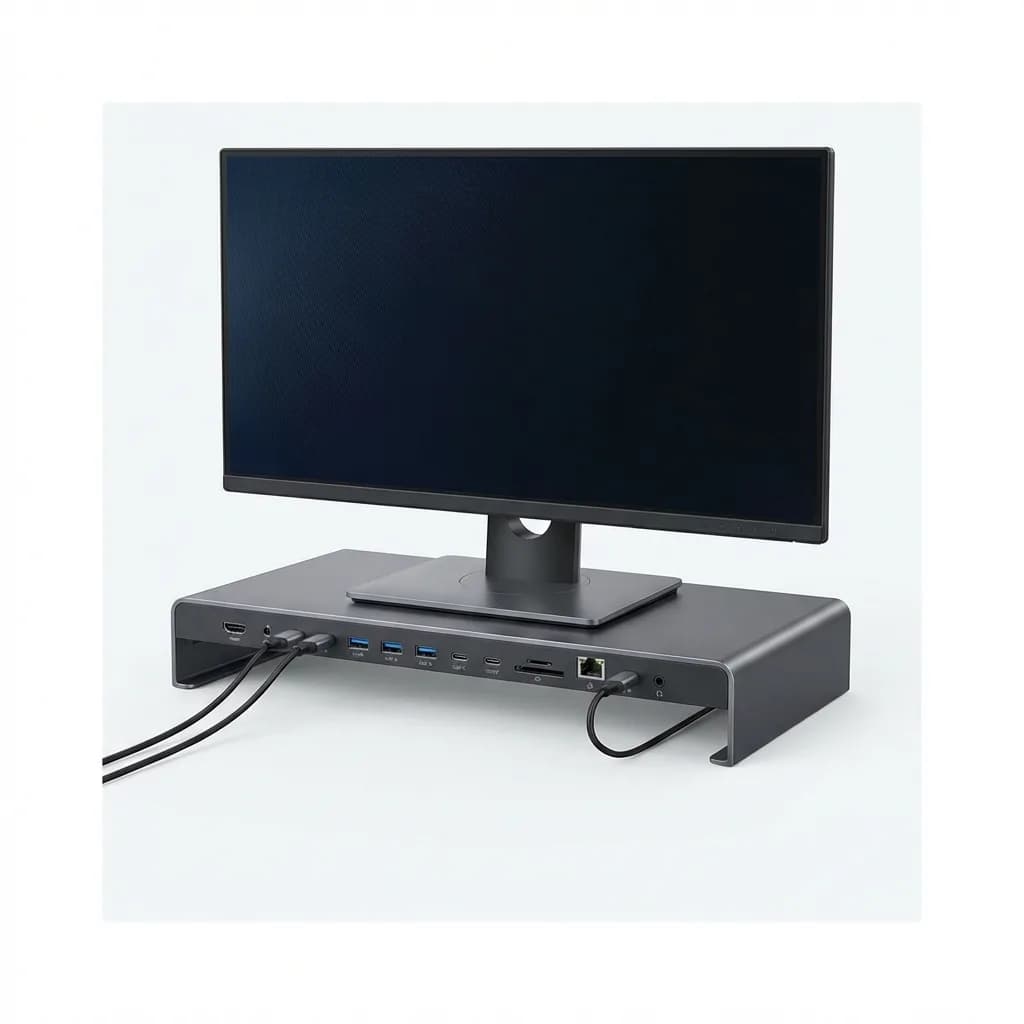
Anker 675 USB-C Docking Station (12-in-1, Monitor Stand)
$250
12 ports built into a monitor stand, 100W charging, 4K HDMI, three USB-A, two USB-C, SD card reader. Supports up to 17.6 lbs monitor weight.
The 675 delivers 100W power delivery and includes front-facing USB-A and USB-C ports for quick connects. The rear houses HDMI 2.0 (4K 60Hz), Gigabit Ethernet, audio jack, and additional USB-A ports. An SD card reader sits on the side, easy to reach without looking.
The monitor stand portion supports up to 17.6 pounds, enough for a 27-inch display. The platform measures 10.6 x 7.5 inches with a 1.1-inch cable management slot in the back. It's sturdy but not adjustable, so your monitor height is locked at 3.3 inches.
The USB-C port supports USB 3.2 Gen 2, so the hub doesn't throttle USB 3.2 Gen 2 speeds (10Gbps), which some cheaper hubs do.
One limitation: the HDMI port uses the older 2.0 standard, capping you at 4K 60Hz. That's fine for office work but limiting for high-refresh gaming or future 8K displays. It also only supports one external display beyond your MacBook's built-in screen.
Satechi Thunderbolt 4 Dock
Satechi builds Apple-style peripherals, and the Thunderbolt 4 Dock matches MacBook aesthetics with space gray aluminum and rounded edges. It includes sixteen ports: four Thunderbolt 4, four USB-A 3.2 Gen 2, Gigabit Ethernet, 3.5mm audio, SD and microSD readers, and both USB-C and USB-A on the front.
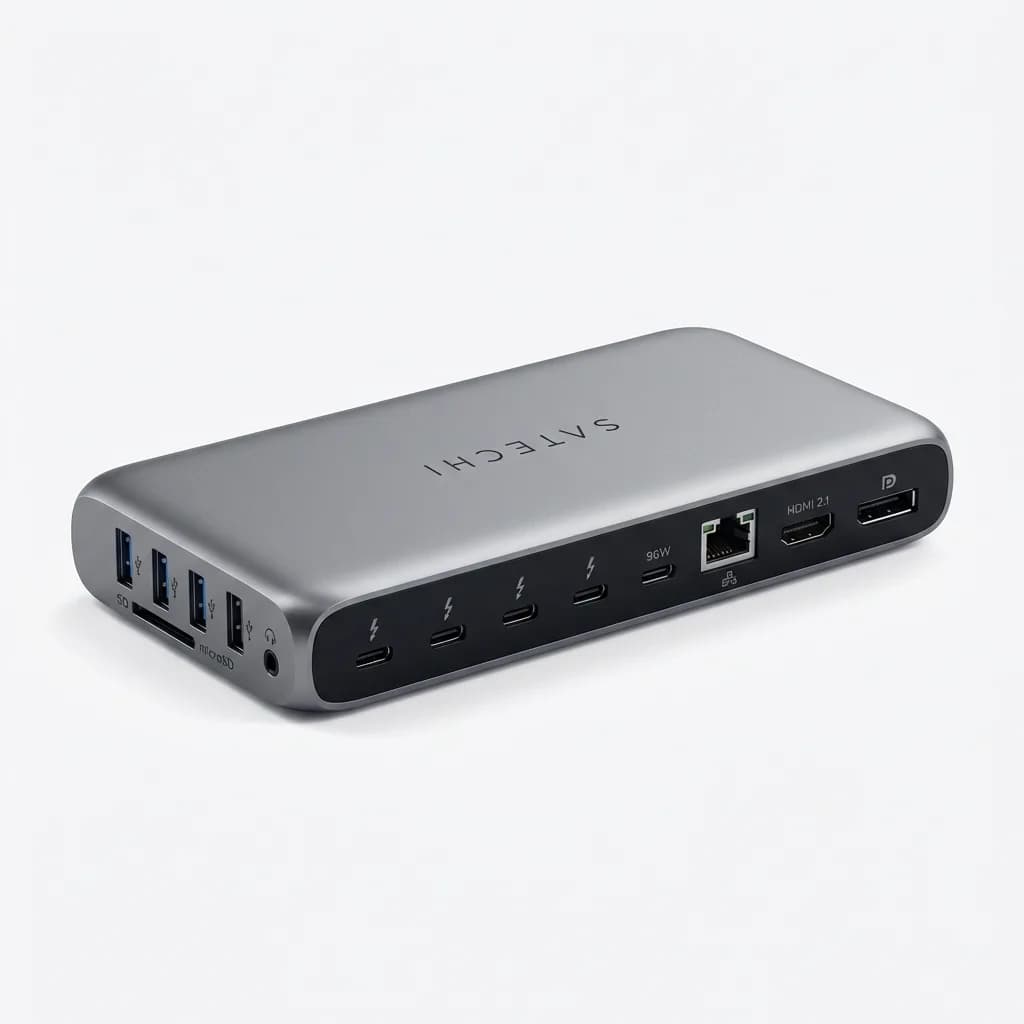
Satechi Thunderbolt 4 Multimedia Pro Dock
$299
16 ports, four Thunderbolt 4 downstream, 96W charging, dual 4K display support, Gigabit Ethernet, SD/microSD readers. Aluminum construction matches MacBook design.
The dock supplies 96W power delivery, enough for the 14-inch MacBook Pro and just barely enough for the 16-inch under moderate load. If you run intensive tasks like video exports, the 16-inch might pull more than 96W and slowly drain the battery even while plugged in.
Display support covers dual 4K at 60Hz or a single 6K display at 60Hz. You can use the Thunderbolt ports for monitors or mix HDMI and Thunderbolt connections. All four Thunderbolt 4 ports deliver 40Gbps, not shared between devices.
The SD card reader supports UHS-II speeds up to 312 MB/s, making it useful for photographers dumping cards from cameras. The microSD slot shares the same controller, so you can't use both simultaneously at full speed.
Build quality is excellent. The aluminum housing stays cool during operation, and the rubberized base prevents sliding. At 1.1 pounds, it's light enough to travel with but substantial enough not to get pulled around by cable tension.
Plugable USB-C Triple Display Docking Station
Most USB-C hubs limit you to one or two external displays. The Plugable UD-ULTC4K handles three 4K displays simultaneously, plus your MacBook's built-in screen for a four-monitor setup. It uses DisplayLink technology to drive the extra monitors, which works but has tradeoffs.
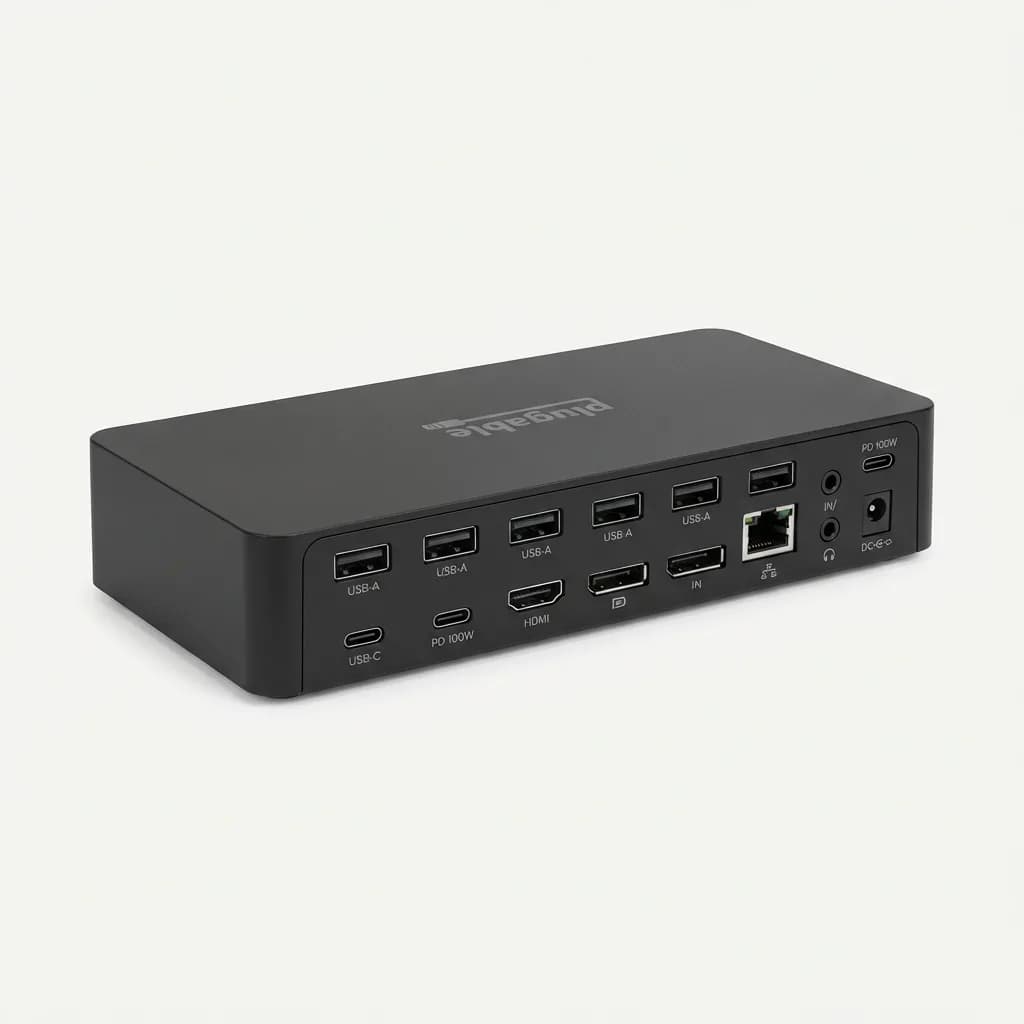
Plugable USB-C Triple Display Docking Station (UD-ULTC4K)
$279
14 ports, triple 4K display support, 100W charging, six USB-A, two USB-C, Gigabit Ethernet. Uses DisplayLink for extended display support.
DisplayLink compresses video before sending it over USB, so it's not ideal for color-critical work or gaming. You'll notice slight lag in cursor movement on DisplayLink screens, and video playback can stutter if you're maxing out the hub's bandwidth. But for productivity apps like spreadsheets, email, and web browsing across multiple screens, it works fine.
The dock includes six USB-A 3.0 ports, two USB-C ports, Gigabit Ethernet, audio in/out, and 100W power delivery. Two of the displays connect via HDMI, the third uses DisplayPort. All three support 4K at 60Hz, though refresh rates drop if you're transferring large files simultaneously.
You need to install DisplayLink drivers on macOS, and they occasionally break with OS updates. We've found DisplayLink compatibility solid with Ventura and Sonoma, but updates can cause temporary issues until DisplayLink releases a patch.
The upside is price. Getting three displays running on a MacBook Pro usually requires a Thunderbolt dock plus a separate DisplayLink adapter. The Plugable combines both in a single unit for less money.
Ugreen Revodok Pro 209 USB-C Hub
Ugreen's Revodok Pro 209 packs eleven ports into a compact housing that fits in a laptop bag. It's not a full dock, more like a powerful dongle with a short cable. But if you need portability more than desktop permanence, it's a strong option.
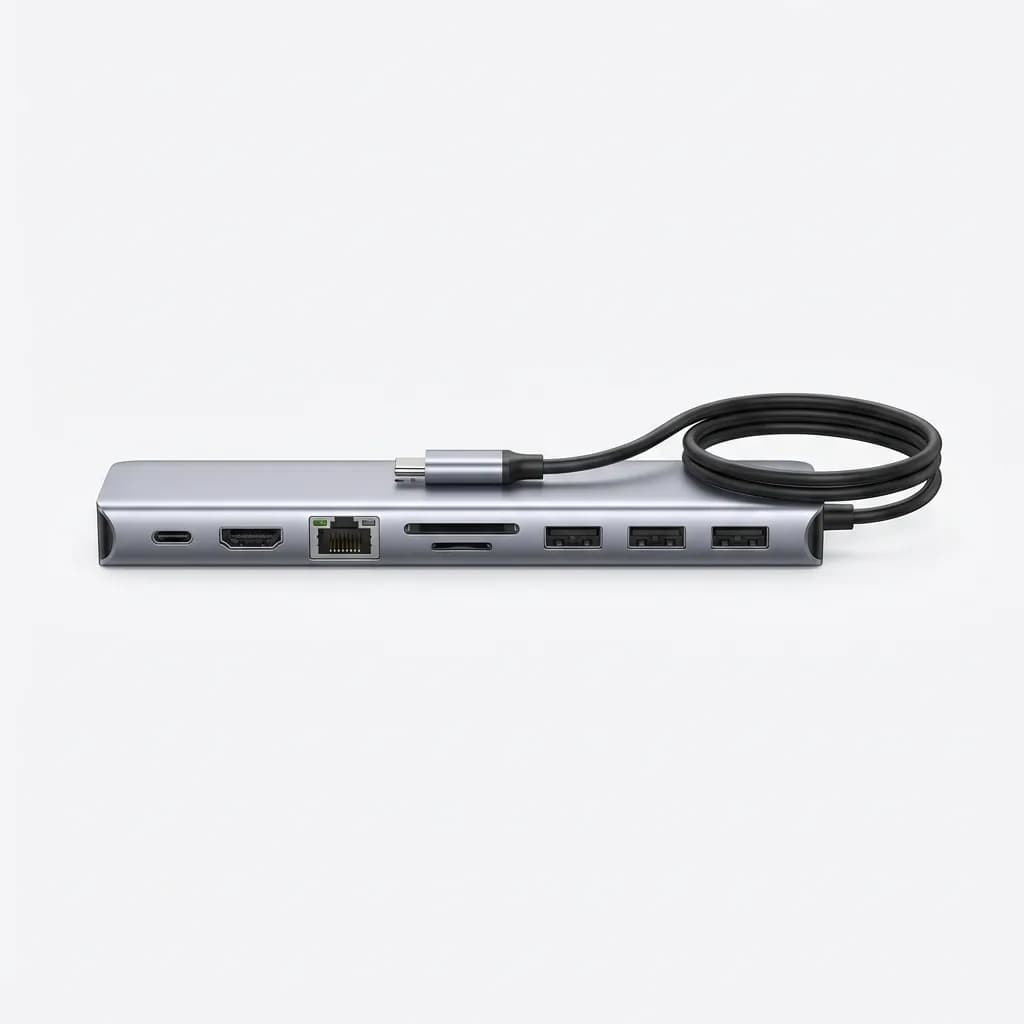
Ugreen Revodok Pro 209 11-in-1 USB-C Hub
$100
11 ports, 100W power delivery, 4K HDMI, Gigabit Ethernet, SD/TF readers, three USB-A, portable aluminum design. Great for travel.
The 209 includes 100W power delivery, 4K HDMI at 30Hz, Gigabit Ethernet, USB-C data port at 10Gbps, three USB-A 3.2 Gen 2 ports, SD and microSD readers, and a 3.5mm audio jack. The integrated cable is 6 inches long, keeping it compact but giving you enough reach.
HDMI is limited to 4K at 30Hz, which looks choppy if you're used to 60Hz. It's fine for presentations or occasional external display use, but not ideal as a daily driver for a 4K monitor. For 1080p or 1440p displays, it works perfectly at 60Hz.
The SD card reader handles UHS-II speeds.
The aluminum body dissipates heat well despite the small size. After two hours of sustained use with all ports occupied, surface temperature reached 115 degrees F. Warm but not uncomfortable to touch.
How Much Should You Spend?
Budget hubs under $50 work for basic needs: USB-A ports, HDMI out, maybe SD card access. They're fine for presentations or occasional use. But they cut corners on chipsets, power delivery, and thermal design. Some fail within months of daily use.
Mid-range hubs ($100-$200) offer better build quality, reliable power delivery, and more ports. They're the sweet spot for most people who need a desk setup but don't require Thunderbolt speeds or multiple high-res displays.
Premium Thunderbolt docks ($250-$400) make sense if you're running dual 4K displays, need every bit of bandwidth for external storage arrays, or want display outputs that match the MacBook Pro's native quality. The price premium buys guaranteed performance and longevity.
For travel, prioritize portability and port diversity over maximum specs. A compact hub with the specific ports you need beats a larger dock with ports you'll never use.
Single Cable Setup vs Daisy Chain
One cable to your MacBook that handles charging, displays, and peripherals is the dream. That requires a Thunderbolt dock with enough power delivery for your Mac plus enough bandwidth for your displays and data needs.
The 14-inch MacBook Pro ships with a 67W charger but can use up to 96W under heavy load. The 16-inch includes a 140W charger and pulls up to 140W. Most Thunderbolt docks deliver 85-98W, which works for the 14-inch and keeps the 16-inch topped up during normal use.
If you're running the 16-inch at full tilt (video exports, 3D rendering), it might slowly discharge even while connected to a 98W dock. In that case, you can use two cables: one to the dock for peripherals and displays, one to Apple's 140W charger for maximum power. Not as clean, but functionally superior.
Daisy chaining Thunderbolt devices lets you connect a dock, then connect another dock or Thunderbolt storage to the first dock. This works but adds complexity and potential failure points. We prefer a single hub with all the ports we need over a chained setup.
Do You Actually Need Thunderbolt 4?
Thunderbolt 4 guarantees 40Gbps bandwidth, dual 4K display support, and 15W device charging. Standard USB-C hubs max out at 10Gbps (USB 3.2 Gen 2) or 20Gbps (USB 3.2 Gen 2x2) and often support only one display.
If you're running a single 4K display at 60Hz, standard USB-C is fine. The bandwidth difference won't matter for typical office work, web browsing, or even light photo editing. Save the money and get a quality USB-C hub instead of paying the Thunderbolt premium.
Thunderbolt becomes essential for dual 4K displays, 5K or 6K single displays, external GPU enclosures, or multi-drive RAID arrays. The bandwidth headroom prevents bottlenecks when you're pushing multiple high-speed devices simultaneously.
M2 and M3 MacBook Pros include Thunderbolt 4 ports, but using a standard USB-C hub on those ports doesn't reduce performance for basic tasks. The Mac negotiates the highest common protocol. You only lose out on Thunderbolt-specific features like daisy chaining and full 40Gbps speeds.
Common Problems and How to Avoid Them
Hubs running hot can trigger thermal throttling on your Mac or cause the hub itself to disconnect intermittently. Aluminum housings dissipate heat better than plastic. Check reviews for mentions of temperature issues.
Inconsistent charging happens when the hub's power delivery controller can't negotiate properly with your Mac. Stick with hubs that explicitly list MacBook Pro compatibility and deliver at least 85W. Generic "100W PD" claims without specific Mac testing are risky.
Display flickering or disconnects usually indicate insufficient bandwidth or a bad cable. If you're using HDMI, make sure the hub supports the resolution and refresh rate you're trying to push. If you're using USB-C to DisplayPort, verify the cable is rated for the bandwidth.
Some hubs cause coil whine, a high-pitched electrical noise when charging. It's harmless but annoying. Unfortunately, you usually don't discover this until after purchase. Quality control varies even within the same model batch.
USB-A ports not delivering enough power to charge devices means the hub's power budget is too small or the USB-A ports aren't implementing fast charging protocols. Check if the hub specifies per-port power delivery or just total wattage.
Ethernet dropping connection points to either a bad cable, a bad hub chipset, or interference from USB 3.0 devices. Try different cables first. If the problem persists, it's likely the hub. Cheaper hubs sometimes use Ethernet controllers that conflict with USB 3.0 traffic.
What Works for Different Workflows
Video editors need Thunderbolt 4 for external RAID arrays and dual displays. The CalDigit TS4 or Satechi Thunderbolt 4 Dock handles this without bottlenecks. Anything less causes slowdowns when scrubbing 4K timelines while previewing on an external monitor.
Photographers benefit from built-in SD card readers that support UHS-II speeds. The Satechi and CalDigit docks both include fast readers. Budget hubs often use slow SD controllers that take forever to import RAW files.
Developers running virtual machines and containers care most about stability. Cheap hubs cause random disconnects that interrupt compile jobs or database operations. Stick with known brands and don't cheap out if reliability matters.
Frequent travelers want lightweight hubs with short cables and just the ports they actually use. The Ugreen Revodok Pro 209 fits this better than a massive dock. Less weight, smaller footprint, easier to pack.
Home office setups where the hub stays plugged in justify spending more on a full-featured dock. Once it's installed, you never think about it again. The upfront cost spreads across years of daily use.
Wrap-Up
The best hub depends on what you're connecting. For maximum flexibility and future-proofing, the CalDigit TS4 offers eighteen ports and Thunderbolt 4 speeds that won't bottleneck any workflow. It's expensive but solves every connection problem you might have.
The Anker 675 makes sense if desk space is tight and you want the monitor stand functionality built in. Twelve ports handle most needs without the premium price of Thunderbolt.
For portability, the Ugreen Revodok Pro 209 packs essential ports into a travel-friendly package. It's the hub to throw in your bag for coffee shop work or presentations.
Buy once, buy right. A quality hub lasts years and makes your MacBook Pro actually usable for desk work. Cheap out, and you'll be shopping for a replacement in six months.
The Weekly Dispatch
Enjoying this article?
Subscribe and get our best gear picks delivered every Sunday morning.
Related Posts
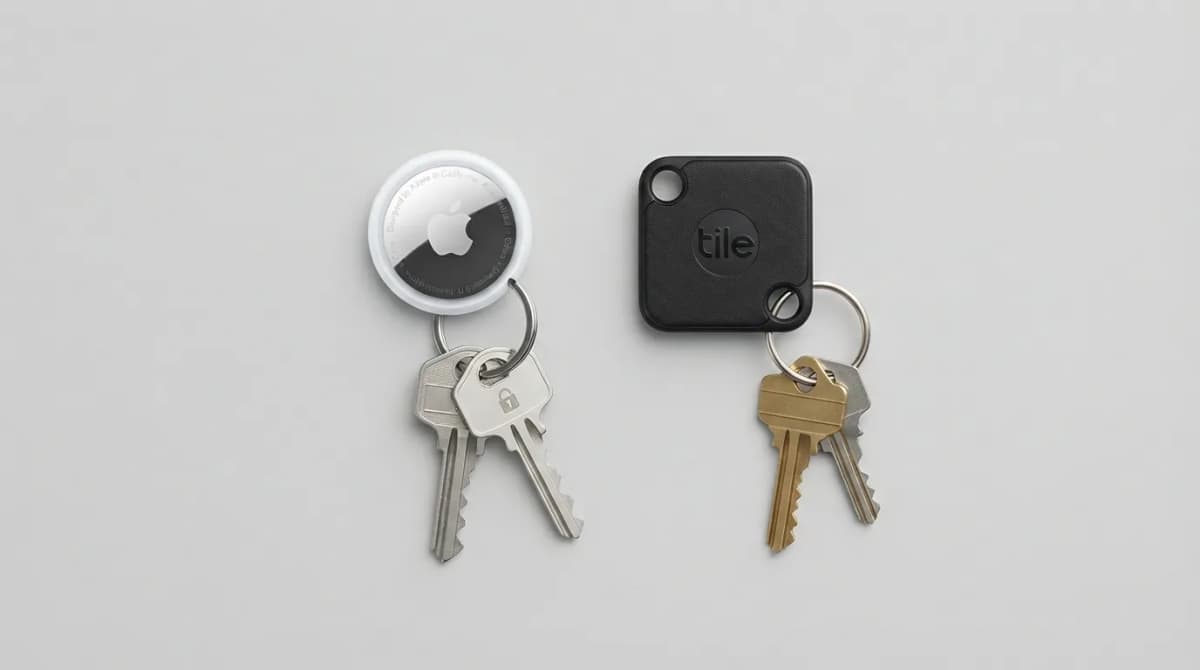
AirTag vs Tile Mate (2026): Which Key Tracker to Buy
Apple AirTag vs Tile Mate for keys: phone compatibility, range, battery and price compared from Apple and Tile maker pages, as of Oct 2026.
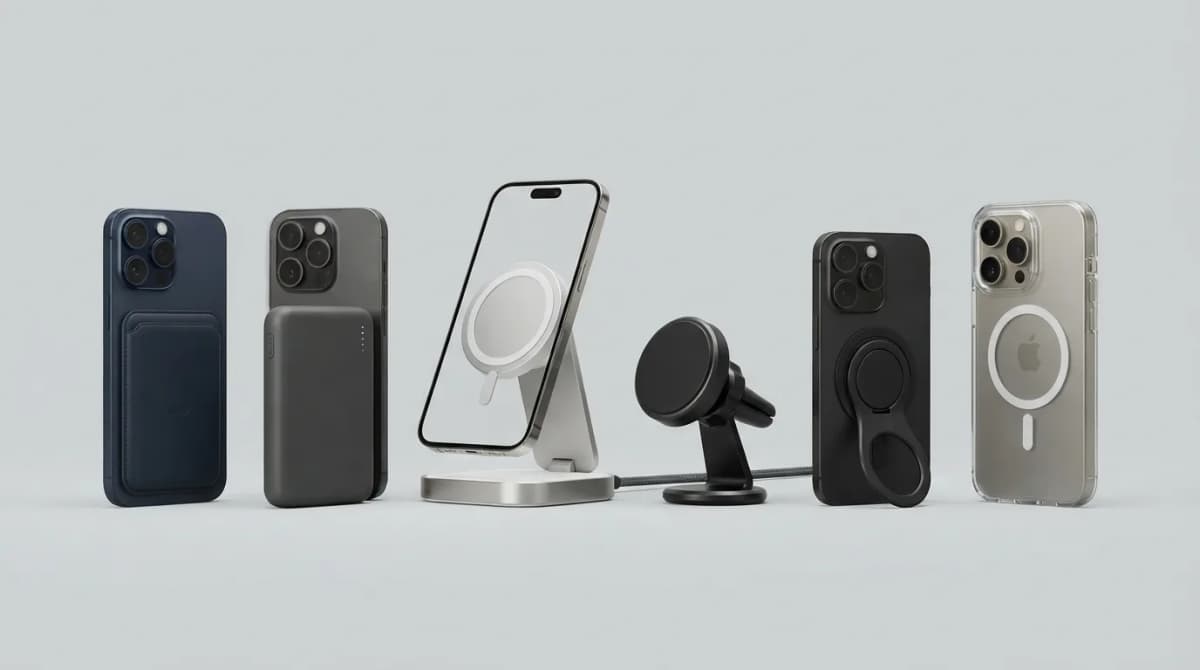
Best MagSafe Accessories for iPhone 18 Pro (2026)
MagSafe and Qi2 accessories for iPhone 18 Pro and Pro Max: wallets, power banks, a dock, car mount, grips, cases, a keyboard, a controller, an SSD and more, with maker specs and prices as of Oct 2026.
Best Qi2 Power Banks 2026 for iPhone and Android
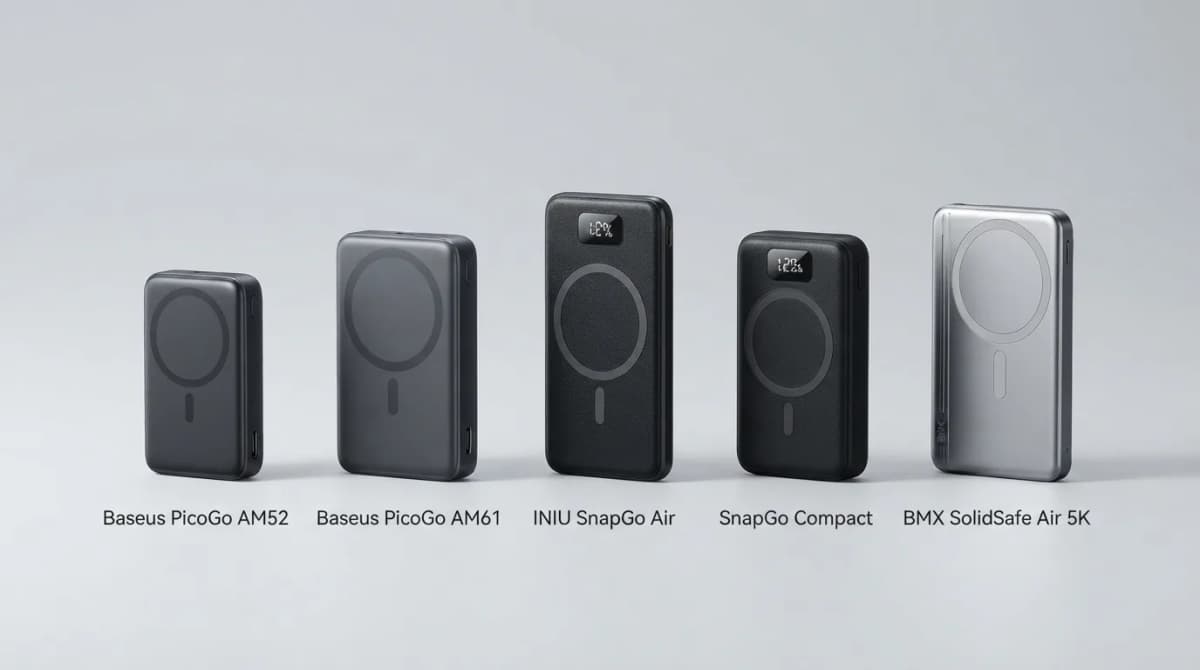
The best Qi2 and Qi2.2 magnetic power banks for 2026: Baseus PicoGo AM52 and AM61, INIU SnapGo Air and SnapGo Compact, and BMX SolidSafe Air 5K. Prices at publish, Oct 2026.
BMX SolidSafe Air 5K: Thinnest Qi2 Power Bank
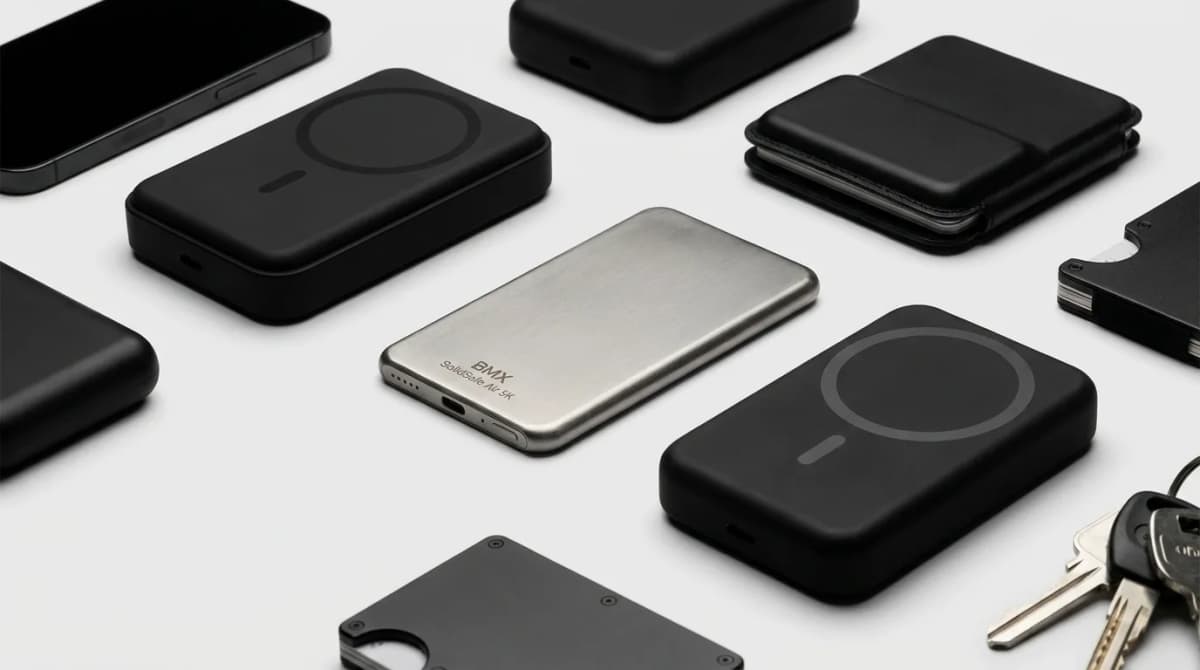
Thick MagSafe banks die in the bag. BMX SolidSafe Air 5K hits 6.8mm titanium, Qi2 15W, and a semi-solid-state safety pitch — pocket-first EDC power, not another brick. Who buys, who skips.