The Best USB-C Hubs and Docks in 2026
Modern laptops prioritize sleek designs with minimal ports, but that doesn't mean you have to sacrifice connectivity. USB-C hubs and docks have become essential accessories for anyone who needs to connect multiple...

Modern laptops prioritize sleek designs with minimal ports, but that doesn't mean you have to sacrifice connectivity. USB-C hubs and docks have become essential accessories for anyone who needs to connect multiple peripherals, external displays, or charge their devices while working. Whether you're a remote worker, creative professional, or frequent traveler, the right USB-C hub can transform a single port into a complete workstation.
Quick Picks
Our top recommendations at a glance:
- 1
- 2
- 3
- 4
- 5
In this guide, we'll break down the key features to look for and recommend the best USB-C hubs and docks for different use cases in 2026.
Understanding Port Selection and Your Needs
The first step in choosing a USB-C hub is understanding what ports you actually need. Most modern hubs offer a combination of USB-A ports for legacy devices, additional USB-C ports, HDMI or DisplayPort for monitors, SD card readers for photographers, and ethernet jacks for stable internet connections.
For basic users who primarily need to connect a mouse, keyboard, and maybe an external drive, a compact 4-5 port hub will suffice. However, if you're working with multiple monitors, high-speed storage, or need to charge power-hungry devices, you'll want to look for hubs with more robust specifications.
Consider your typical workflow: Do you regularly transfer large video files? You'll want USB 3.2 Gen 2 speeds (10Gbps) or higher. Do you need dual monitor support? Look for hubs with multiple display outputs and confirm they support your laptop's video output capabilities.

Anker 555 USB-C Hub (8-in-1)
$50
This compact hub features 3 USB-A 3.0 ports, USB-C data port, HDMI port supporting 4K@30Hz, SD/microSD card readers, and 85W power delivery pass-through. Perfect for everyday productivity and light creative work.
Power Delivery: Keeping Your Devices Charged
Power Delivery (PD) is one of the most critical features to evaluate in a USB-C hub. This technology allows your hub to pass through power from your charger to your laptop while simultaneously powering the hub's ports and connected devices.
Most quality hubs support at least 60W PD pass-through, which is sufficient for ultrabooks and 13-inch laptops. However, if you own a 15-inch or 16-inch MacBook Pro, Dell XPS 15, or other performance laptops, you'll need a hub that supports 85W-100W PD to maintain full charging speeds while the hub is in use.
Be aware that the hub itself consumes some power for its operations, so a hub rated for 100W PD might only deliver 85-90W to your laptop. Always check the specifications to ensure the pass-through wattage meets your laptop's charging requirements. Using an underpowered hub won't damage your laptop, but it may charge slowly or not maintain charge under heavy workloads.

CalDigit TS4 Thunderbolt 4 Dock
$380
Premium Thunderbolt 4 dock with 98W charging, 18 ports including three Thunderbolt 4 downstream ports, 2.5Gb Ethernet, and support for up to two 6K displays or one 8K display. The gold standard for professional workstations.
Display Output Capabilities and Multi-Monitor Setup
For many users, the ability to connect external monitors is the primary reason for purchasing a USB-C hub. However, display output capabilities vary significantly between hubs, and compatibility depends on both the hub and your laptop's specifications.
Most budget-friendly hubs offer a single HDMI port supporting 4K resolution at 30Hz or 60Hz. While this is adequate for general productivity work, creative professionals and gamers will notice the difference between 30Hz and 60Hz refresh rates—60Hz provides smoother motion and a more responsive experience.
For dual monitor setups, you'll need a hub with two display outputs (typically HDMI, DisplayPort, or a combination). Pay close attention to the maximum resolution and refresh rate when using multiple displays simultaneously, as this is often lower than single-display configurations. Thunderbolt 4 hubs offer the most robust display support, capable of driving two 4K displays at 60Hz or even a single 8K display on compatible systems.

Satechi Thunderbolt 4 Multimedia Pro Dock
$250
Features dual HDMI 2.1 ports for two 4K@60Hz displays, three USB-A 3.2 ports, dual USB-C ports, Gigabit Ethernet, SD/microSD card readers, and 96W charging. Excellent mid-range option for dual-monitor productivity setups.
It's crucial to verify that your laptop supports DisplayPort Alt Mode over USB-C or Thunderbolt, as some budget laptops with USB-C ports don't support video output. Check your laptop's specifications before investing in a hub primarily for display connectivity.
Portable vs. Desktop Docks: Choosing Your Form Factor
USB-C hubs fall into two main categories: portable hubs and desktop docks. Portable hubs are compact, lightweight, and designed for travel. They typically connect directly to your laptop via a short cable and don't require external power, drawing all their power from your laptop's USB-C port or through PD pass-through.

HyperDrive 6-in-1 USB-C Hub
$45
Ultra-compact aluminum hub with 4K HDMI, USB-C PD 100W, two USB-A 3.0 ports, and SD/microSD card readers. Weighs just 2 ounces and fits easily in any laptop bag, making it ideal for travelers and mobile professionals.
Desktop docks, on the other hand, are larger units that sit on your desk and typically require their own power supply. This external power allows them to support more ports, higher power delivery, and more demanding peripherals like high-speed storage arrays or multiple displays. Desktop docks excel in creating a true one-cable setup where you connect a single cable to your laptop and instantly access all your peripherals, displays, and charging.
For remote workers with a dedicated home office, a desktop dock is usually the better investment. It creates a cleaner workspace and more reliable connectivity than portable hubs. However, if you frequently work from different locations or travel regularly, a portable hub provides the flexibility you need without adding significant weight to your bag.
Data Transfer Speeds and Performance Considerations
USB naming conventions can be confusing, but understanding data transfer speeds is essential for making an informed choice. USB 3.0 (also called USB 3.2 Gen 1) offers 5Gbps speeds, USB 3.1 Gen 2 (USB 3.2 Gen 2) provides 10Gbps, and the latest USB4 and Thunderbolt 4 standards deliver up to 40Gbps.
For most users, USB 3.0 speeds are adequate for peripherals like keyboards, mice, and printers. However, if you work with external SSDs, high-resolution video files, or large photo libraries, the faster speeds of USB 3.2 Gen 2 or Thunderbolt ports make a substantial difference in workflow efficiency.

Plugable Thunderbolt 4 Hub
$180
Compact Thunderbolt 4 hub with four Thunderbolt 4 ports, each supporting 40Gbps data transfer. Includes 60W charging and can daisy-chain up to five additional Thunderbolt devices. Perfect for creative professionals managing multiple high-speed peripherals.
Thunderbolt 4 hubs offer the best performance but come at a premium price. They're worth the investment if you regularly transfer large files, need reliable dual-display support, or want to future-proof your setup. For standard office work and web browsing, a quality USB 3.2 hub will serve you well at a fraction of the cost.
Final Recommendations and What to Avoid
When shopping for USB-C hubs in 2026, prioritize build quality and warranty support. Cheap hubs from unknown brands may save you money upfront but often suffer from overheating, unreliable connections, or complete failure within months. Stick with established brands like Anker, CalDigit, Satechi, or Plugable that offer at least a one-year warranty.
Avoid hubs that seem too good to be true—if a hub claims to offer eight ports, 100W charging, and dual 4K displays for $25, something is compromised, usually data transfer speeds or build quality. Real hardware costs money, and quality hubs with comprehensive features typically start around $40-50 for portable models and $150+ for desktop docks.

OWC Thunderbolt Dock
$240
Professional-grade dock with 90W charging, 11 ports including Thunderbolt 4, USB-A, USB-C, Gigabit Ethernet, audio in/out, and SD card reader. Supports up to two 4K displays or one 8K display. Backed by OWC's excellent customer support and 2-year warranty.
Before purchasing, make a list of the specific ports you need and verify your laptop's capabilities—particularly regarding display output and power delivery requirements. Consider whether you need portability or prefer a permanent desk setup. With the right USB-C hub, you can transform your minimalist laptop into a powerful, connected workstation that adapts to your workflow rather than limiting it.
The Weekly Dispatch
Enjoying this article?
Subscribe and get our best gear picks delivered every Sunday morning.
Related Posts
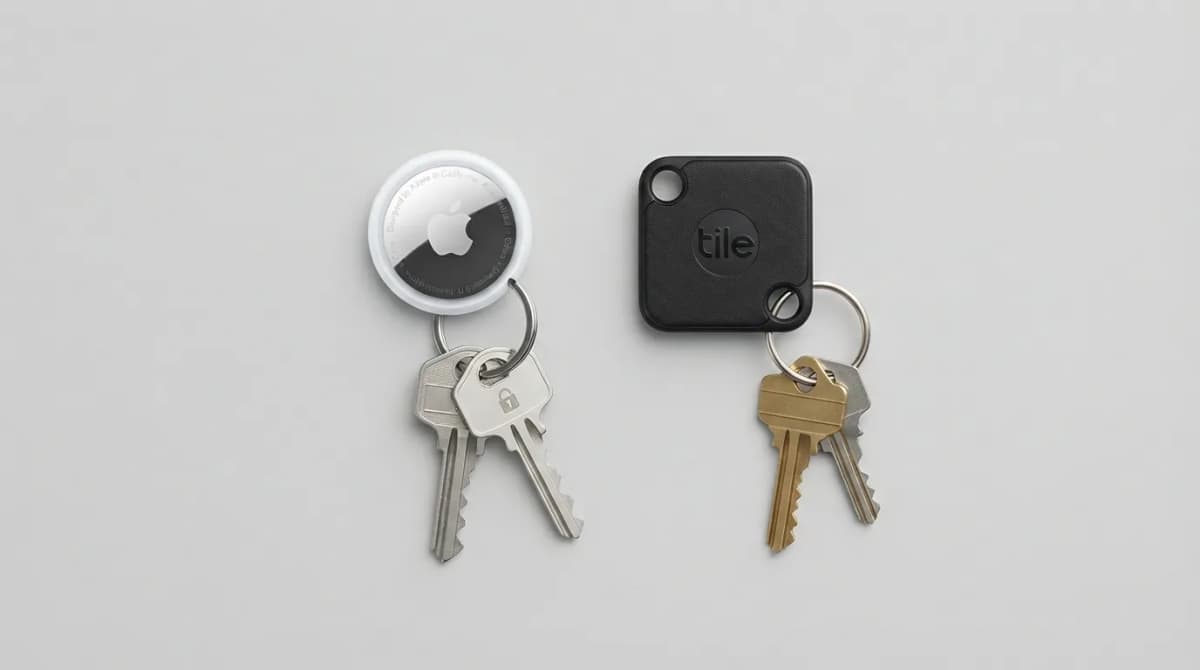
AirTag vs Tile Mate (2026): Which Key Tracker to Buy
Apple AirTag vs Tile Mate for keys: phone compatibility, range, battery and price compared from Apple and Tile maker pages, as of Oct 2026.
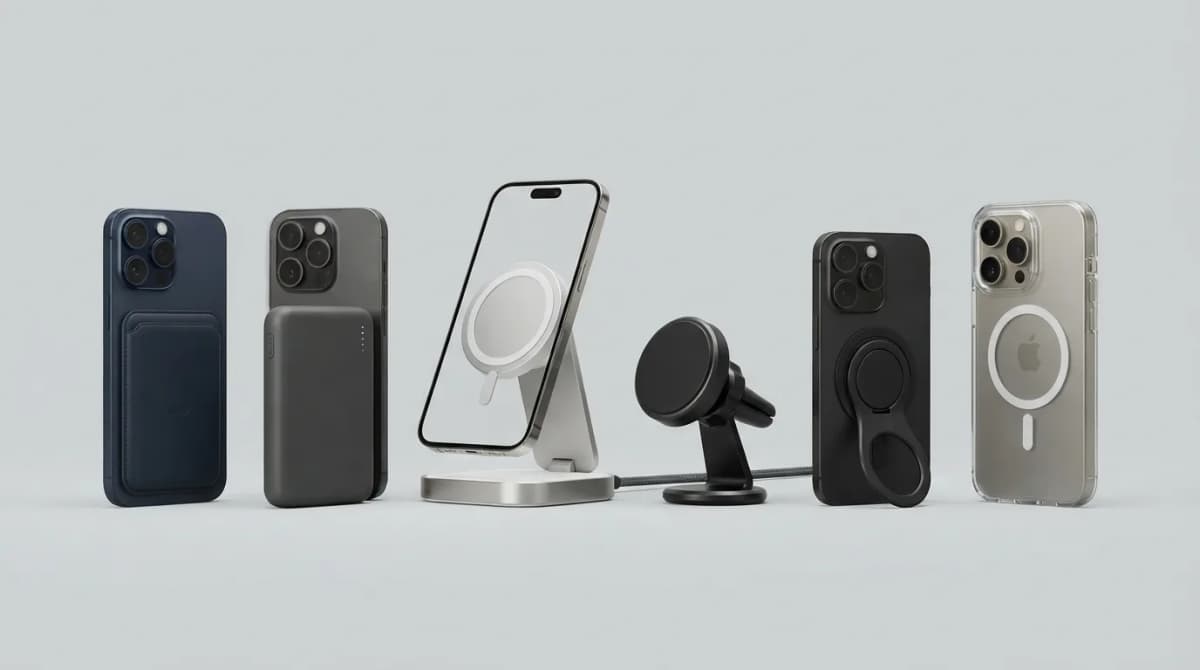
Best MagSafe Accessories for iPhone 18 Pro (2026)
MagSafe and Qi2 accessories for iPhone 18 Pro and Pro Max: wallets, power banks, a dock, car mount, grips, cases, a keyboard, a controller, an SSD and more, with maker specs and prices as of Oct 2026.
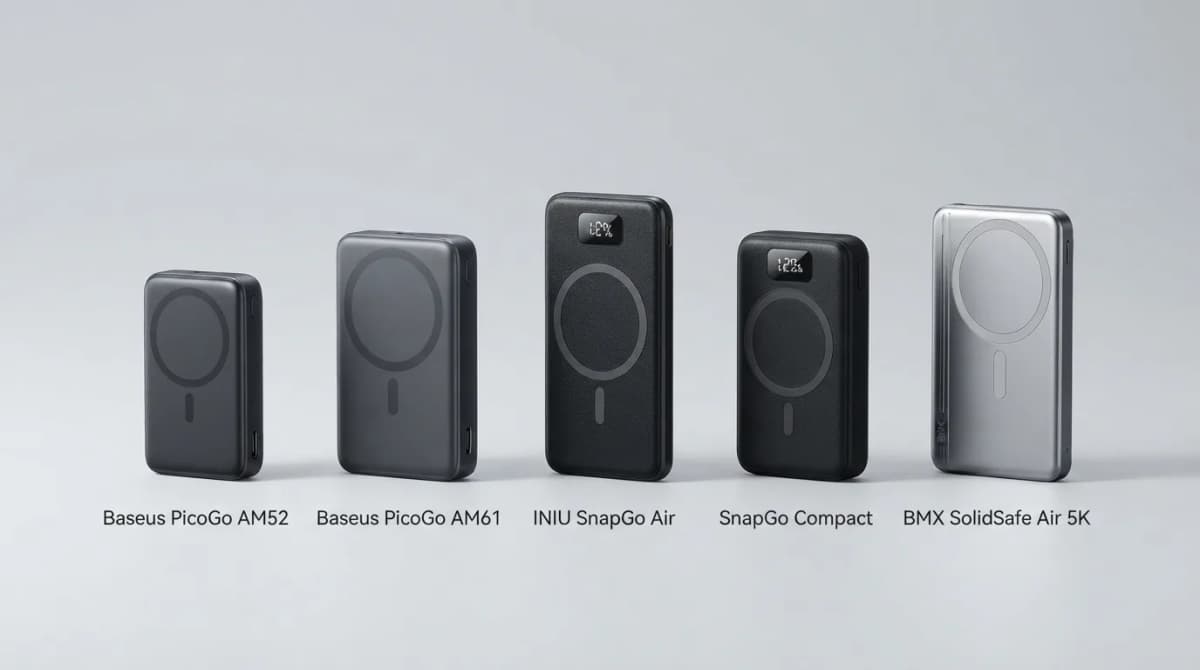
Best Qi2 Power Banks 2026 for iPhone and Android
The best Qi2 and Qi2.2 magnetic power banks for 2026: Baseus PicoGo AM52 and AM61, INIU SnapGo Air and SnapGo Compact, and BMX SolidSafe Air 5K. Prices at publish, Oct 2026.
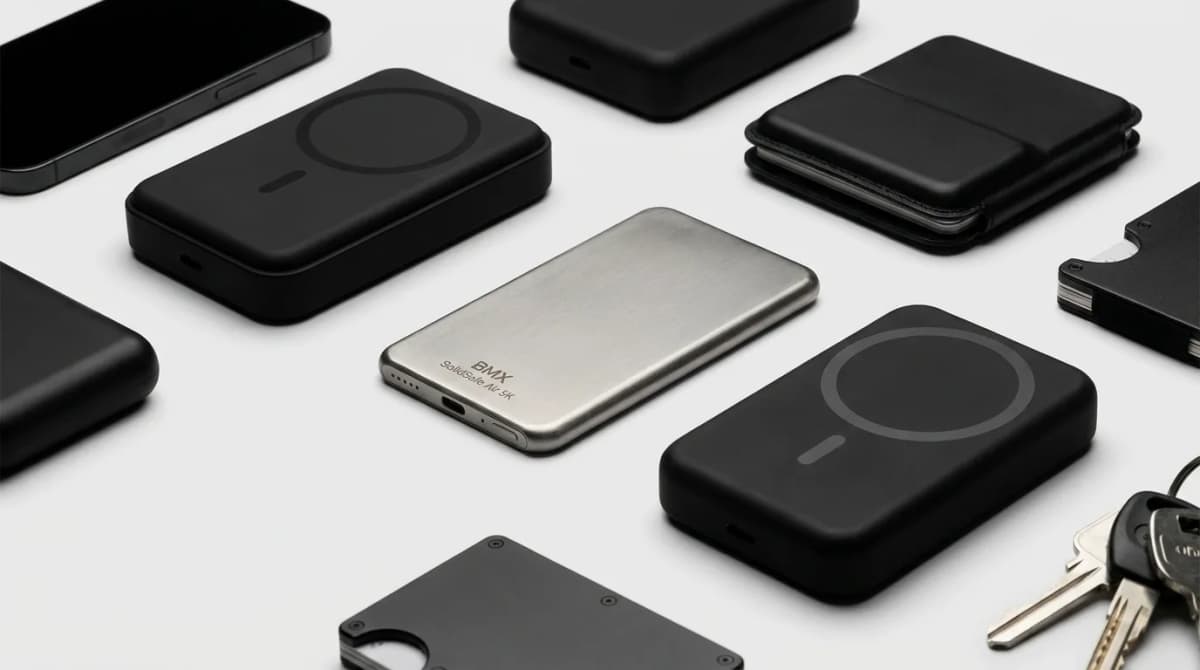
BMX SolidSafe Air 5K: Thinnest Qi2 Power Bank
Thick MagSafe banks die in the bag. BMX SolidSafe Air 5K hits 6.8mm titanium, Qi2 15W, and a semi-solid-state safety pitch — pocket-first EDC power, not another brick. Who buys, who skips.