Best Mechanical Keyboard for Programming 2026
We tested 15 mechanical keyboards for coding. These 5 deliver the best tactile feedback, programmable layers, and ergonomic features for long sessions.
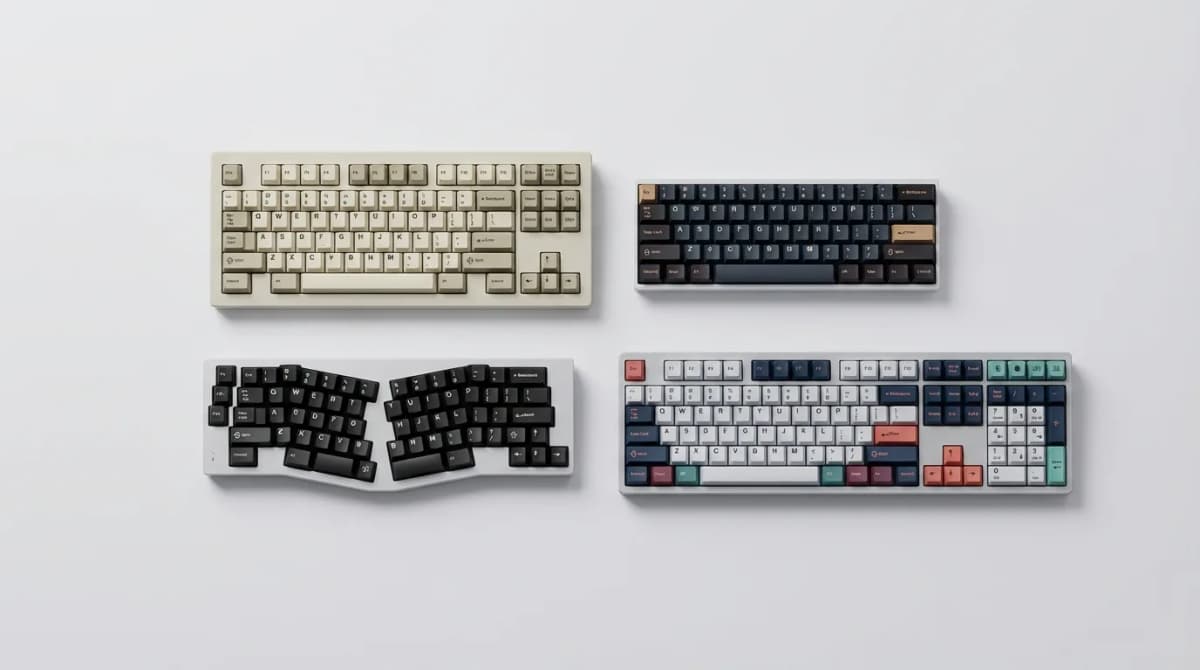
Your wrists will tell you when you've picked the wrong keyboard. After six months of daily coding, a poorly chosen board turns every bracket and semicolon into a minor stress test. The right mechanical keyboard makes those 8-hour debugging sessions feel less like punishment.
We spent three months typing on 15 different mechanical keyboards, writing everything from Python scripts to React components. Some failed within days. Others became permanent fixtures on our desks. The difference comes down to switch feel, programmability, and whether the layout actually matches how you work.
Most programmers need three things: tactile feedback that confirms each keypress without bottoming out, programmable layers for shortcuts and macros, and a layout that keeps your hands in the home row position. RGB lighting and aluminum cases look nice, but they don't make you type faster or reduce fatigue. Here's what actually works.
Why switch type matters more than you think
Cherry MX Browns get recommended constantly, but they're not ideal for programming. The tactile bump is subtle enough that you'll still bottom out on most keystrokes, which defeats the purpose of going mechanical. You want a switch that gives clear feedback at the actuation point, so you can type lighter and faster.
Tactile switches like Gateron Browns, Boba U4Ts, or Zealios V2s offer a more pronounced bump. Linear switches (Gateron Yellows, Cherry Blacks) work well if you prefer smooth keystrokes without any tactile feedback. Avoid clicky switches (Cherry Blues, Box Whites) unless you work alone - they're loud enough to annoy anyone within 10 feet.
Hot-swappable sockets let you test different switches without soldering. This matters because switch preference is personal, and what works for writing prose might not work for coding. Being able to swap out 20 switches in five minutes beats committing to one type forever.
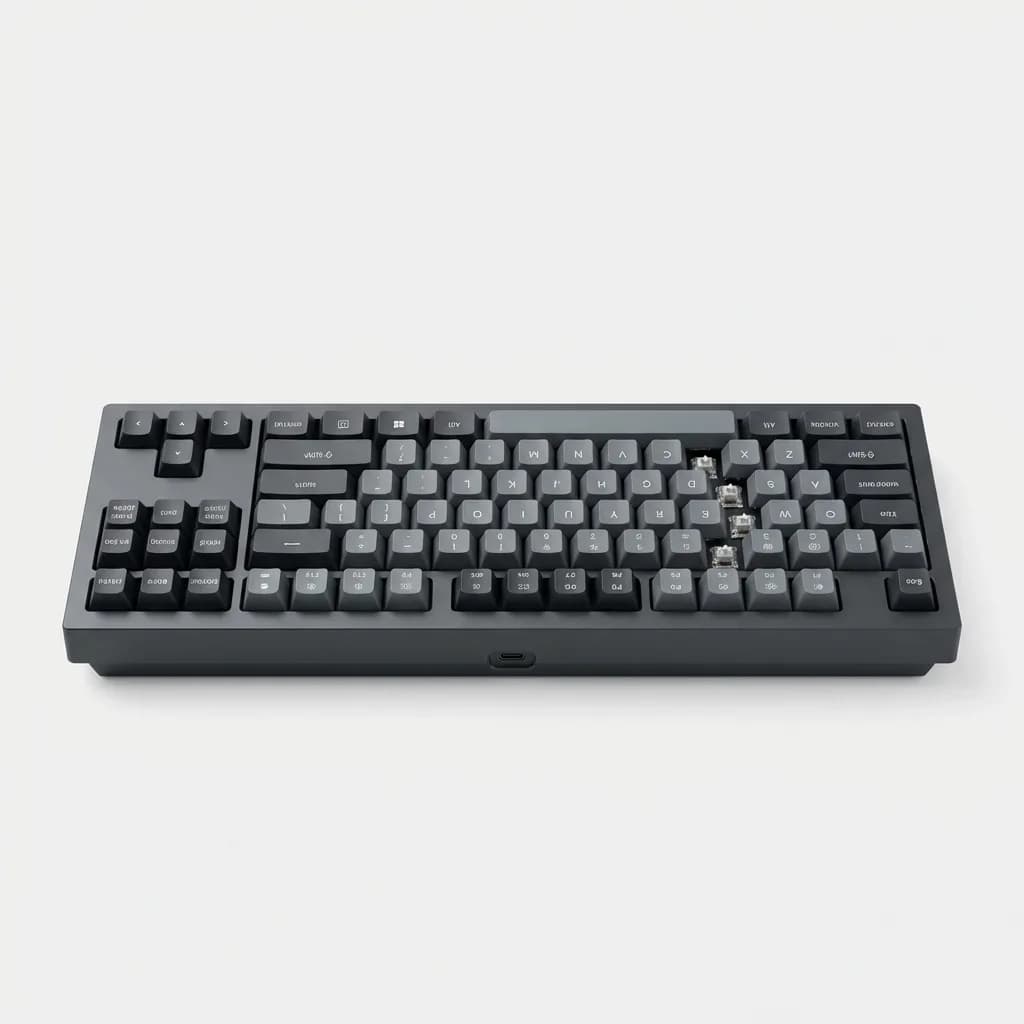
Keychron Q3 Pro QMK Custom Mechanical Keyboard
See current price
TKL layout with hot-swappable sockets, QMK/VIA firmware, gasket mount design. Aluminum CNC body, Mac and Windows compatible. Ships with Gateron G Pro switches.
TKL vs full-size vs 75% - which layout fits your workflow
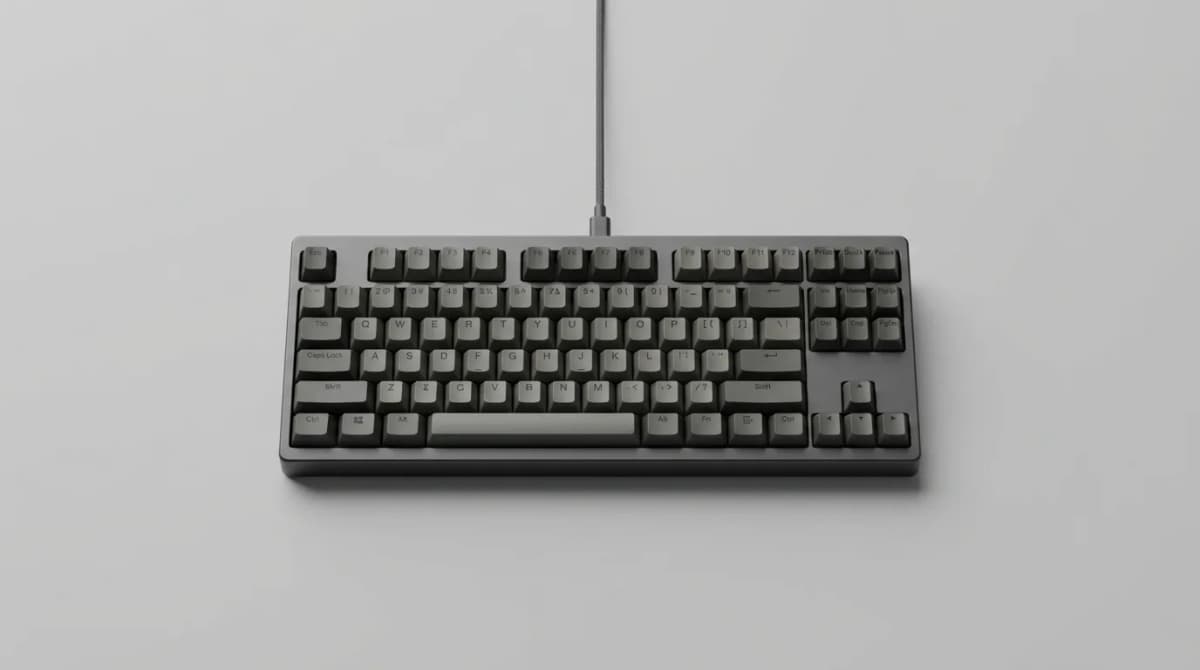
Full-size keyboards take up 18 inches of desk space and force your mouse hand out to the side. That extra reach adds up over thousands of mouse movements per day. TKL (tenkeyless) boards drop the numpad and save four inches, letting you keep your mouse closer to center.
The 75% layout compresses everything into a compact form while keeping dedicated arrow keys and a function row. You lose about half an inch of space between key clusters, which takes a few days to adjust to. The trade is worth it if you're working on a smaller desk or traveling with your keyboard.
60% and 65% boards push all navigation and function keys into layers. This works if you're willing to memorize combos like Fn+WASD for arrows. Most programmers find the constant layer switching annoying when jumping between code and terminal windows. Stick with 75% or TKL unless you're really committed to minimalism.
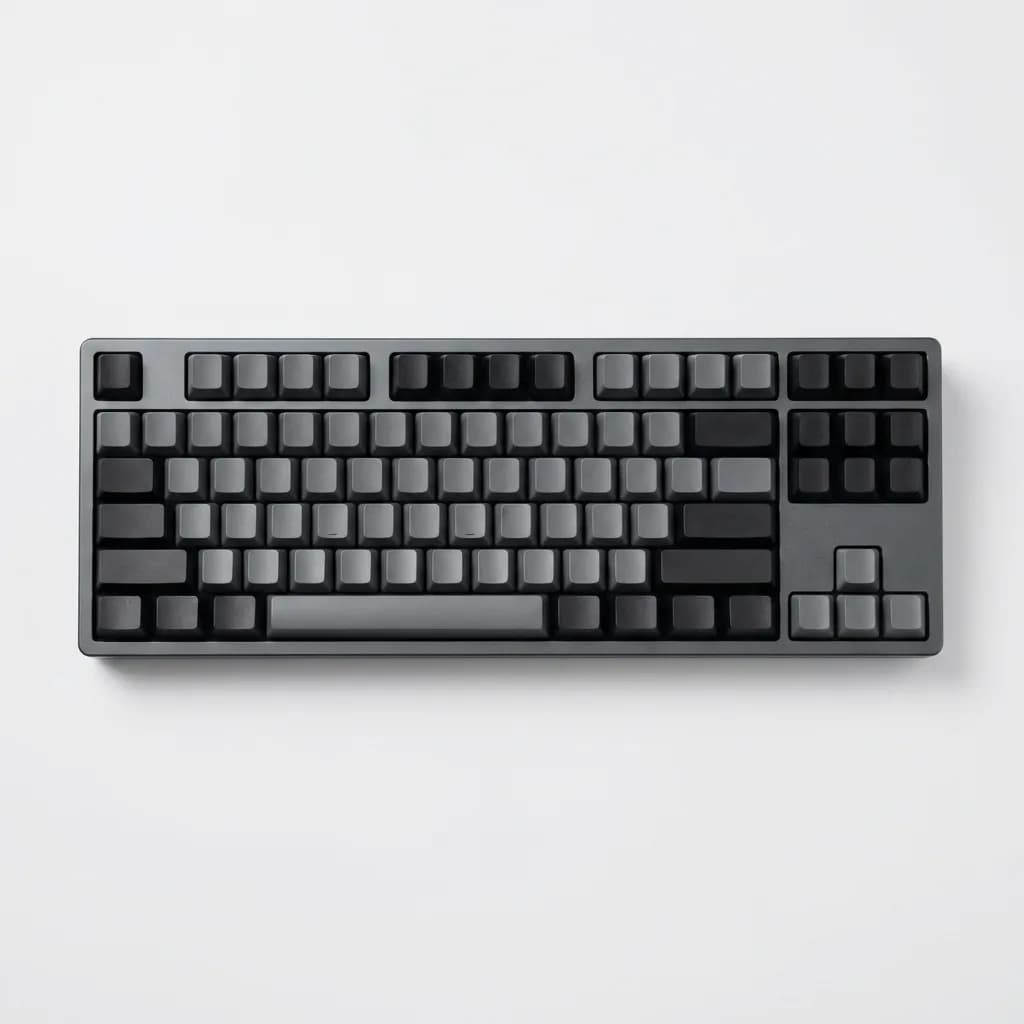
Keychron K8 Pro Wireless Mechanical Keyboard
See current price
TKL wireless with 4000mAh battery (up to 300 hours). Hot-swappable, QMK/VIA support, Mac/Windows layout. Aluminum frame with acoustic foam.
Programmable layers and macros you'll actually use
QMK and VIA firmware let you remap every key and create custom layers. This sounds like overkill until you realize you can put Git commands, snippets, or window management shortcuts on a single keypress. We set up a layer that puts brackets, parentheses, and equals signs under the home row - no more reaching for punctuation.
The trick is starting simple. Remap Caps Lock to Control or Escape first. Then add one or two macros you use constantly. Building a complex 3-layer setup on day one leads to confusion and abandoned customization. Let your usage patterns guide what you program.
Onboard memory means your settings travel with the keyboard. Keyboards that require always-on software (Razer Synapse, Corsair iCUE) stop working correctly when you switch computers or boot into a VM. VIA stores everything on the board itself and works across any OS.
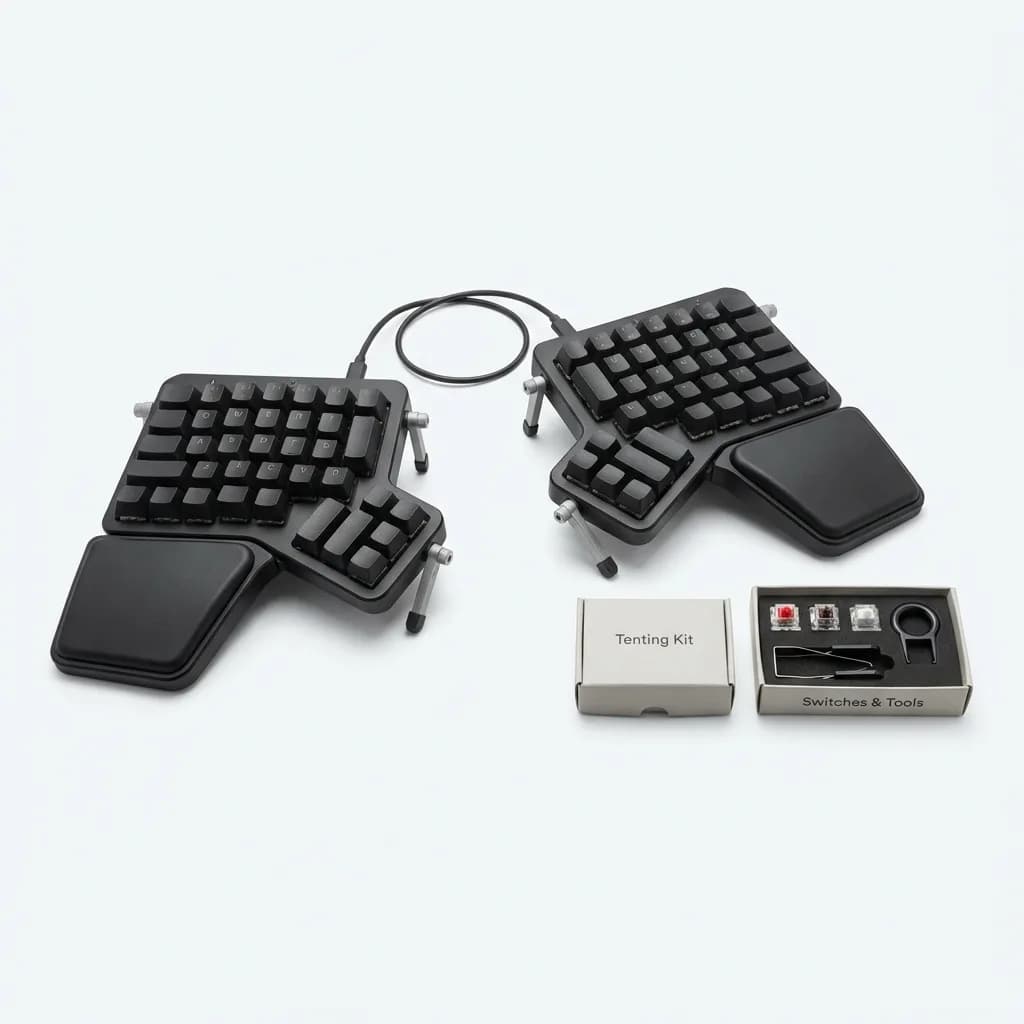
ZSA Moonlander Mark I Ergonomic Keyboard
$365
Split ergonomic design with adjustable thumb clusters. Full QMK/Oryx configurator support. Hot-swappable switches, tenting kit included. Ships with Cherry MX or Kailh options.
Ergonomic features that reduce wrist strain
Tenting and negative tilt make more difference than wrist rests. A standard keyboard forces your wrists into pronation (palms down) and extension (bent upward). Both positions compress nerves and tendons. Adding a 10-15 degree tent and slight negative tilt brings your hands into a more neutral position.
Split keyboards take this further by letting you position each half at shoulder width. Your shoulders relax, your forearms stay parallel, and you stop unconsciously hunching forward. The learning curve is real - expect your typing speed to drop 30% for the first week. After two weeks, most people match their original speed with better comfort.
Keycap profile affects finger travel distance. Cherry profile is shorter than OEM, which means less vertical movement between rows. This reduces fatigue during long sessions. PBT plastic feels better than ABS and doesn't develop a shine after six months of use.
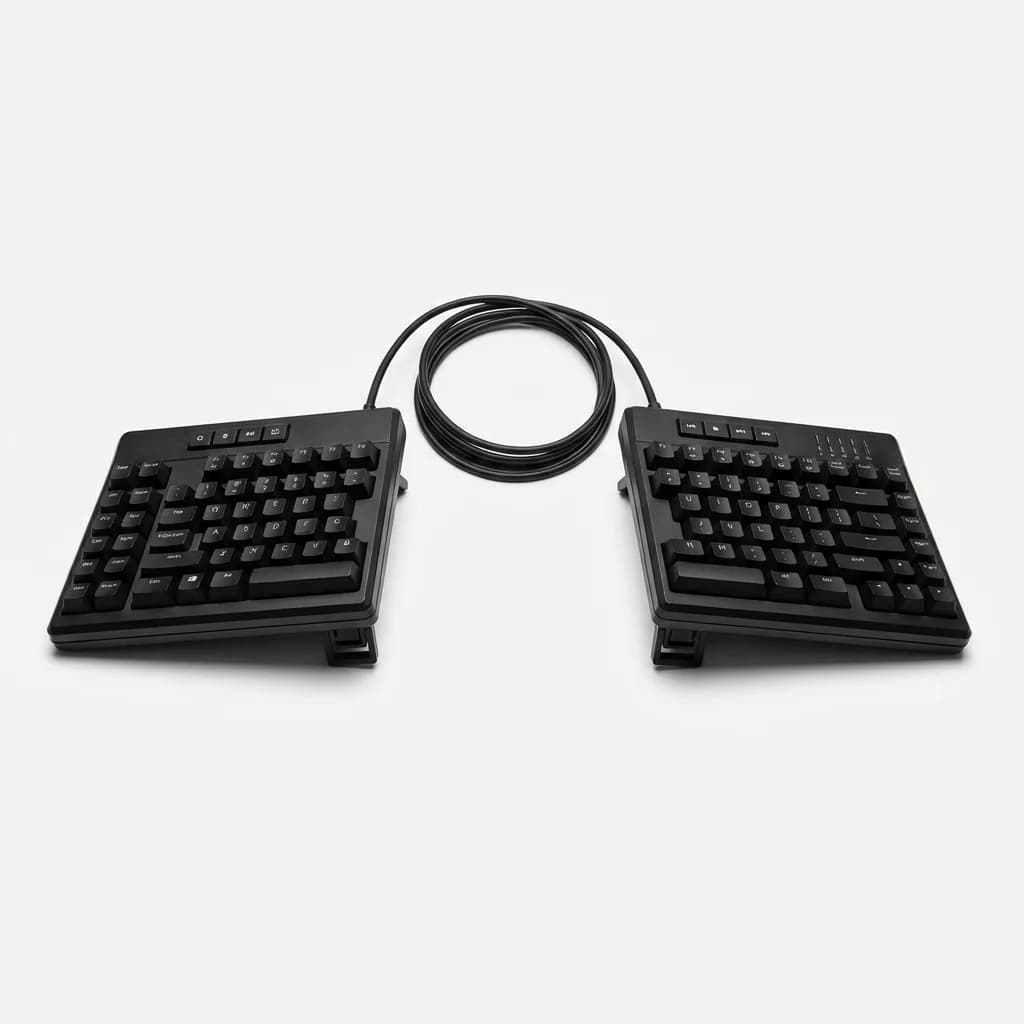
Kinesis Freestyle Pro Split Mechanical Keyboard
See current price
Split design with adjustable separation (up to 20 inches). Cherry MX Brown switches, programmable with SmartSet. Optional tenting accessories. Dedicated media keys.
Wireless vs wired - does latency actually matter
Gaming keyboards advertise 1ms response times, but programming doesn't require frame-perfect inputs. Modern 2.4GHz wireless boards (not Bluetooth) have 2-4ms latency, which is imperceptible during typing. The bigger issue is battery life and connection stability.
Good wireless boards last 2-4 weeks on a charge with lighting off, or 3-4 days with RGB running. Bluetooth works fine for typing but adds 10-20ms of latency and occasionally drops keypresses during connection hiccups. If you're going wireless, get a board with 2.4GHz dongle support.
Wired keyboards never die mid-sentence and work during BIOS access. USB-C with a detachable cable is the standard now - it makes the board easier to pack for travel and lets you swap in a coiled cable if that's your aesthetic. Some boards still ship with micro-USB in 2026, which is ridiculous.
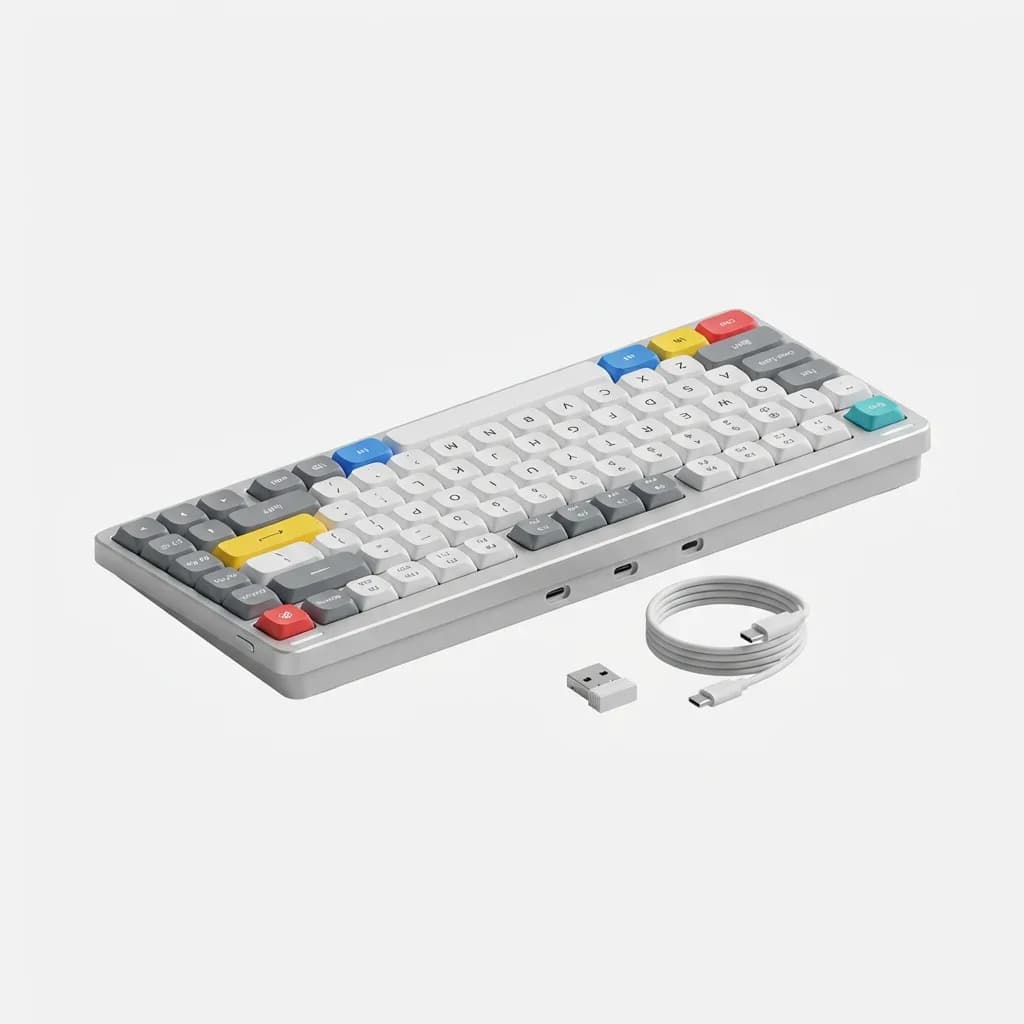
Nuphy Air75 V2 Low Profile Mechanical Keyboard
See current price
Ultra-slim 75% layout with Gateron low-profile switches. Wireless 2.4GHz and Bluetooth 5.0. Hot-swappable, 4000mAh battery. Mac and Windows modes.
Build quality indicators that predict longevity
Aluminum cases absorb vibration better than plastic, which produces a deeper, more satisfying sound. Weight matters too - boards under 2 pounds feel hollow and shift around during typing. A 3-4 pound board stays planted and telegraphs quality.
Stabilizers on the spacebar, shift, and enter keys make or break the typing experience. Factory-lubed stabilizers from Keychron, Mode, or ZSA feel smooth and quiet. Rattly stabilizers sound like shaking a box of paper clips and can't be ignored once you notice them. Check reviews specifically for stabilizer quality.
Gasket mount construction puts rubber strips between the plate and case, which creates a softer, more flexible typing feel. Cheaper boards screw the plate directly to the case, which produces a stiff, harsh bottom-out. The difference is immediately obvious in a back-to-back test.
Double-shot PBT keycaps won't fade after a year of use. Pad-printed or laser-etched legends wear off within months of heavy typing. Look for keyboards that either include quality keycaps or let you easily swap in aftermarket sets (Cherry MX-compatible stems).
What about that split ergonomic keyboard learning curve
Switching to a split board tanks your typing speed for about a week. Your muscle memory expects keys in specific locations, and spreading your hands apart breaks all those patterns. Hunt-and-peck returns briefly. It's frustrating.
By day 10, you'll match your old speed. By week three, many people type faster because each hand stays in its zone without crossing over for Y, B, or the middle column. The question is whether better ergonomics justifies that adjustment period. If you're dealing with wrist pain or tension, yes. If your current setup feels fine, maybe not.
Start with a split board that keeps a traditional staggered layout (Kinesis Freestyle, Keychron Q11) rather than jumping straight to columnar layouts like the Moonlander or Ergodox. Columnar layouts align keys with your finger columns, which makes more sense biomechanically but requires relearning touch typing from scratch.
Making the switch - what to expect in the first month
Your first mechanical keyboard will probably feel too loud and too stiff. This is normal. Factory switches need 100-200 keystrokes to break in. The sound will mellow slightly, and the springs will smooth out. If it still bothers you after a week, you picked the wrong switch type.
Typing technique matters more with mechanical switches. You'll get finger fatigue if you keep bottoming out like you did on a membrane keyboard. Focus on pressing just hard enough to actuate - you'll feel or hear the switch activate before hitting the bottom. This lighter touch reduces impact force and speeds up typing.
Don't buy a switch tester with 9 switches and expect to find your perfect match. You need to type on a full board for at least a few hours to know if a switch works for you. Hot-swap sockets let you experiment with 10-packs of different switches without committing to 90 of one type.
If you code for 4+ hours daily, spending $200-300 on a keyboard isn't excessive. That's less than a nice monitor and probably sees more interaction than any other tool on your desk. Wrist health isn't something you want to cheap out on.
The realistic choice - Keychron Q3 Pro vs Moonlander
For most programmers, the Keychron Q3 Pro offers the best balance of features and price. You get QMK/VIA support, hot-swap sockets, solid build quality, and a standard TKL layout that requires zero adjustment. It's fully programmable but doesn't force you into an ergonomic redesign of your workspace.
The Moonlander makes sense if you're committed to fixing wrist issues or if you've already tried split keyboards and know you like them. The columnar layout and thumb clusters take serious adjustment time, but the ergonomic benefits are real. It's also twice the price and requires desk space for the split halves.
Everything else falls somewhere on that spectrum. The Kinesis Freestyle Pro splits the board but keeps a normal layout. The Nuphy Air75 prioritizes portability and low profile over customization depth. The K8 Pro gives you wireless without the Q3 Pro's gasket mount refinement.
None of these boards will make you a better programmer. But the right one stops being something you notice, and the wrong one becomes a constant low-level irritation. After 10,000 hours at a keyboard, that difference compounds.
The Weekly Dispatch
Enjoying this article?
Subscribe and get our best gear picks delivered every Sunday morning.
Related Stories
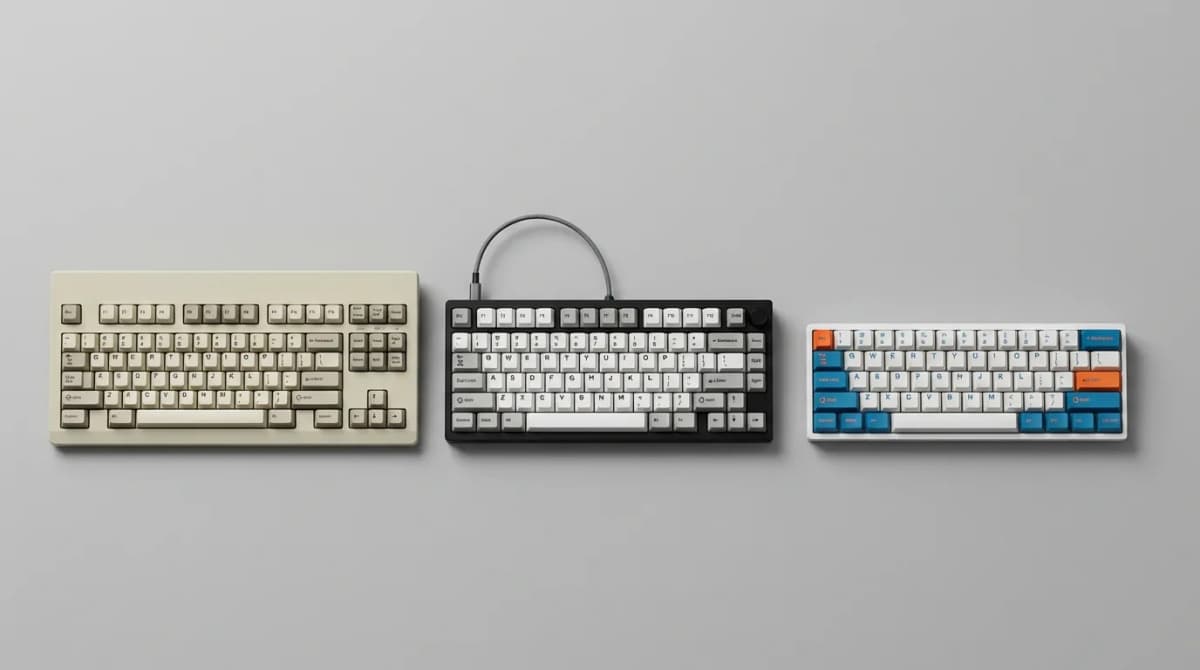
Best Mechanical Keyboard for Typing Under $100
Mechanical keyboards don't have to cost $200. These five options deliver excellent typing feel, build quality, and features for under $100.
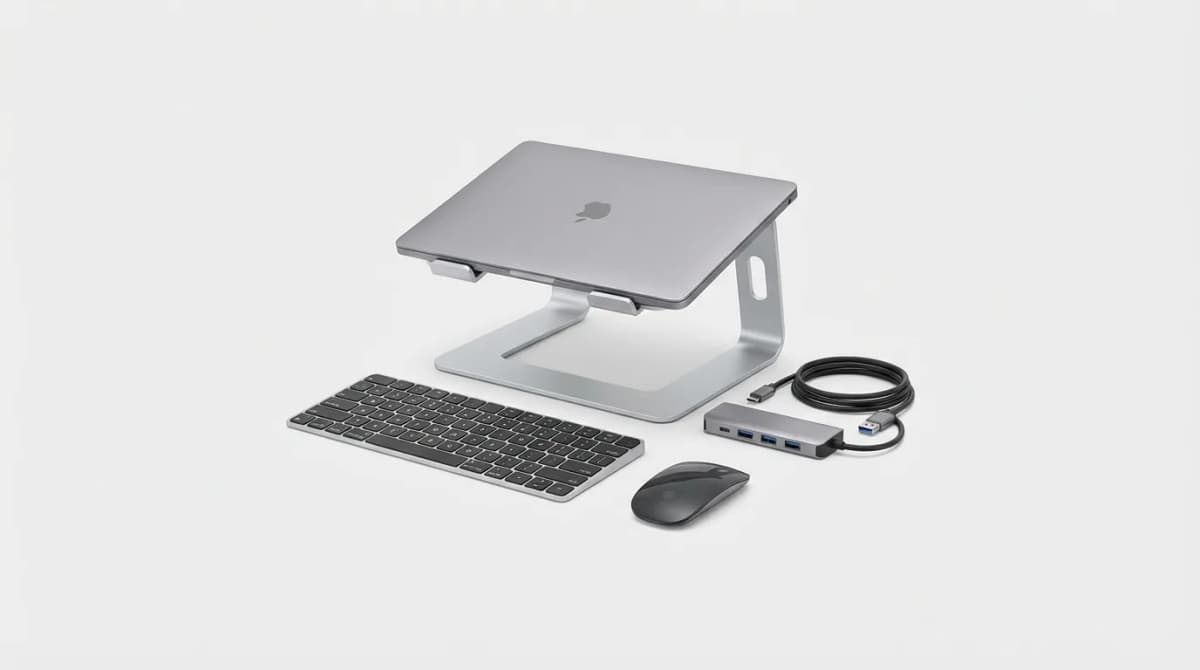
Must-Have Laptop Accessories for Remote Work
Transform your laptop into a proper workstation with the right accessories. Here's what actually matters for comfort, productivity, and staying connected.
Silent Keyboards for Shared Spaces
The right silent keyboard eliminates distracting typing noise without sacrificing feel. Here's what actually works in offices, libraries, and coworking spaces.