Best 4K Webcam for Working from Home 2026
Compare the top 4K webcams for remote work, from auto-tracking models to low-light specialists. Find your match based on your desk setup.
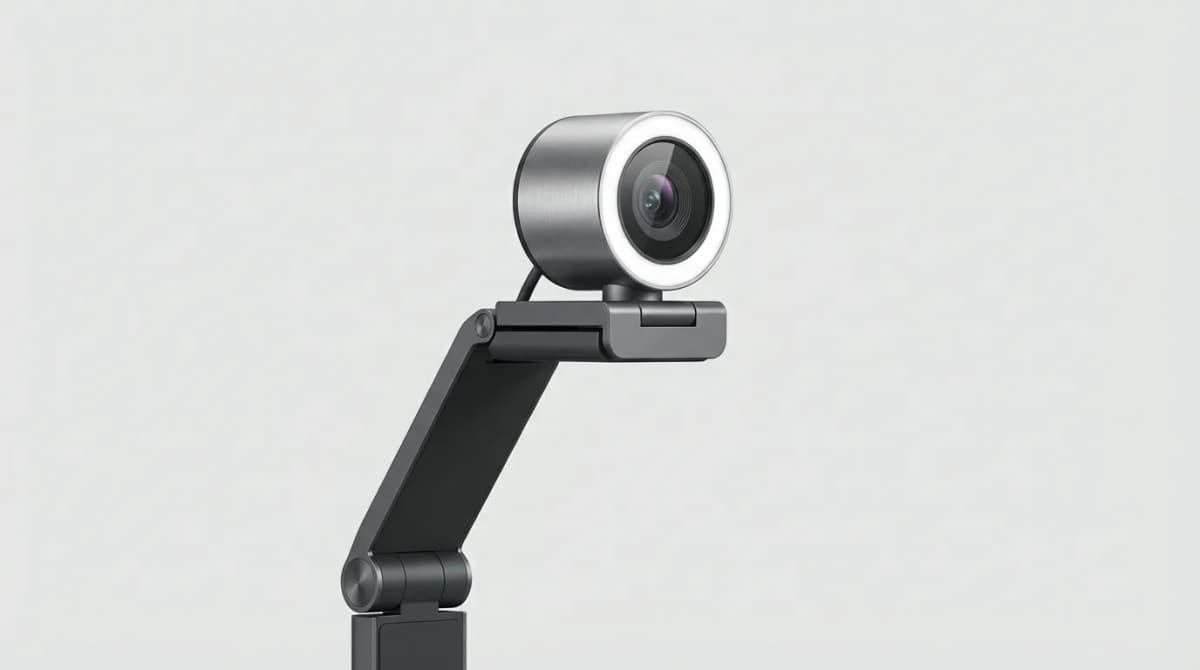
Your laptop's built-in camera wasn't designed for eight hours of video calls. Most cap out at 720p, struggle in anything less than perfect lighting, and make you look washed out or grainy. A dedicated 4K webcam changes that, but the gap between a $70 model and a $300 flagship is huge.
Quick Picks
Our top recommendations at a glance:
- 1Logitech Brio 505Check current price
- 2Insta360 Link 2Check current price
- 3Elgato Facecam ProCheck current price
- 4Dell UltraSharp 4K WebcamCheck current price
- 5Anker PowerConf C200Check current price
We compared seven current 4K webcams for different desk setups, lighting conditions, and video platforms. Some excel at auto-tracking for standup desks. Others prioritize low-light performance for basement offices. A few nail color accuracy for creative calls. Here's what actually matters when you're on camera 20-plus hours a week.
What 4K actually gives you in video calls
Most platforms compress your feed to 1080p or lower, so 4K sounds like overkill. But the sensor size matters more than the output resolution. A 4K sensor captures more light, handles contrast better, and gives the camera's processor more data to work with before compression. You get cleaner edges, better skin tones, and less digital noise in shadows.
The difference shows up in mediocre lighting. A 1080p webcam might push ISO too high and give you a grainy image. A 4K model has more headroom, keeps noise down, and delivers a sharper picture even when your desk lamp is the only light source.
Frame rate is the tradeoff. Most 4K webcams drop to 30fps at full resolution. That's fine for calls but can look slightly choppy if you move quickly. Switching to 1080p usually unlocks 60fps, which feels smoother for presentations or demos where you're moving your hands a lot.
Logitech Brio 505: Best for standard desk setups
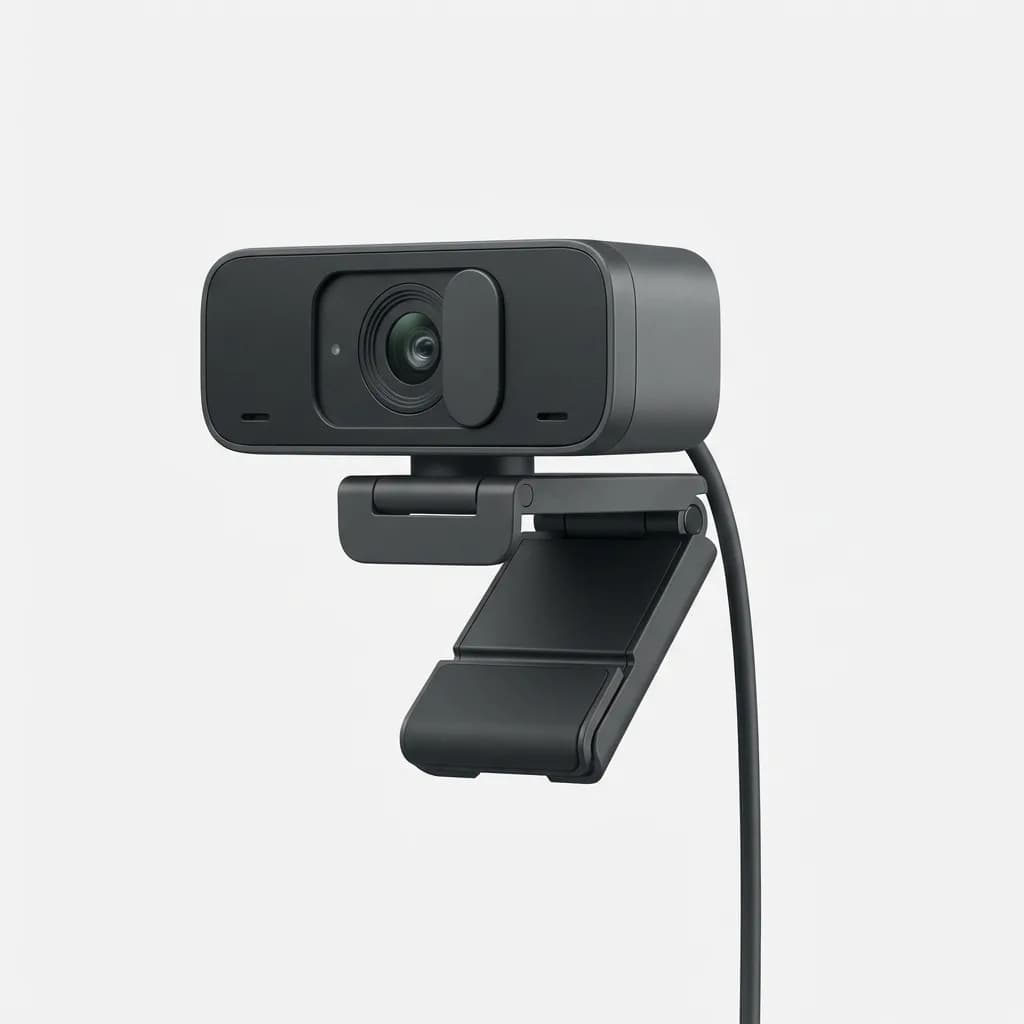
The Brio 505 nails the basics without extra features you won't use. It's a straightforward 4K webcam with solid auto-exposure, decent color science, and a compact design that fits most monitor tops. The field of view is 90 degrees, which frames you well at typical desk distances without showing too much of your room.
Auto-focus is fast and doesn't hunt when you lean in or back. The built-in privacy shutter is a physical cover you slide closed, not a flimsy flip tab. Dual noise-reducing mics handle keyboard clatter better than most, though a dedicated mic still beats them for audio quality.
The 505 works best in moderate to good lighting. Push it into dim conditions and you'll see noise creep into darker areas. But for a well-lit home office, it delivers a clean, professional image without fussing with settings. It's plug-and-play on Windows and Mac, no software required unless you want to tweak white balance or zoom.
Logitech Brio 505
Check current price
Compact 4K webcam with 90-degree field of view, auto-focus, and physical privacy shutter. Solid performance in good lighting with minimal setup.
Insta360 Link 2: Best for dynamic presentations
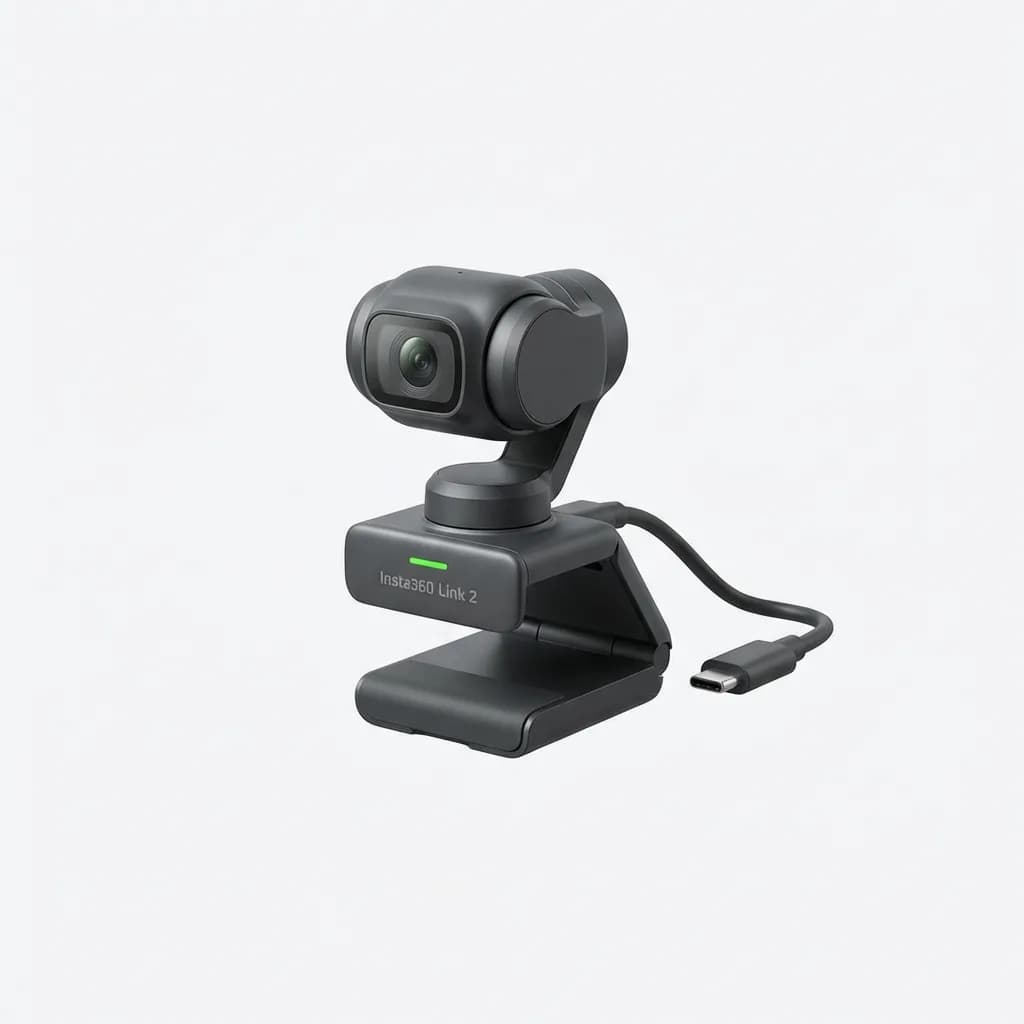
The Link 2 stands out with AI-powered tracking that follows you as you move. Step back to grab something off a shelf, and the camera pans and zooms to keep you centered. It's built for standing desk users, product demos, and anyone who doesn't sit perfectly still during calls.
The gimbal mechanism is smooth and quiet. Tracking works in Teams, Zoom, and Google Meet without extra software, though the desktop app unlocks gesture controls. Hold up your hand in a specific pose and the camera zooms in or reframes. It sounds gimmicky but becomes useful when you're presenting solo and can't adjust settings mid-call.
Image quality is excellent. The 4K sensor handles mixed lighting well, and the three-axis stabilization keeps your image steady even if your desk wobbles. The only downside is size. The Link 2 is bulkier than most webcams and needs a sturdy monitor mount or desk clamp. It's not ideal for thin laptop screens or lightweight portable monitors.
Insta360 Link 2
Check current price
AI-tracking 4K webcam with three-axis gimbal, gesture controls, and auto-framing. Best for standing desks and dynamic presentations.
Elgato Facecam Pro: Best for color accuracy
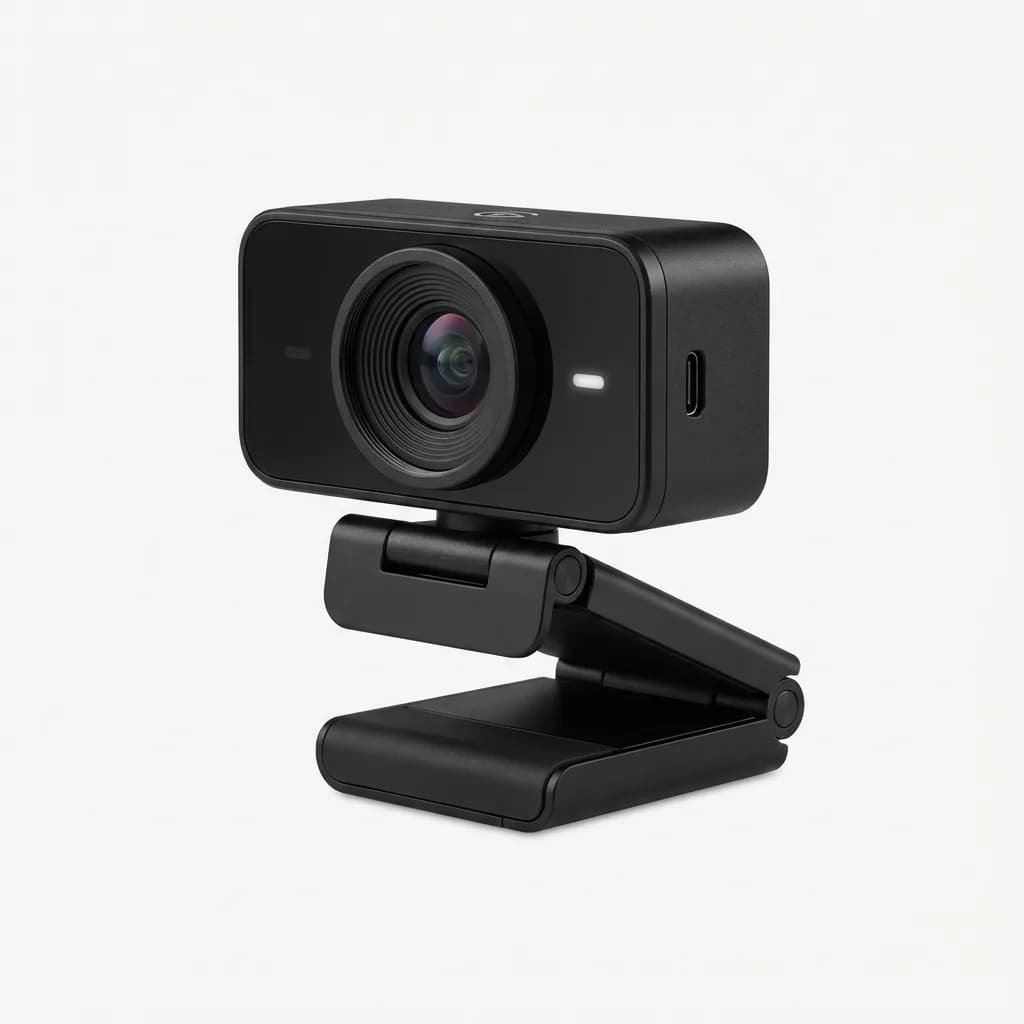
Elgato designed the Facecam Pro for streamers and content creators, but it's equally strong for professional calls where accurate skin tones and color grading matter. The Sony STARVIS sensor excels in low light without cranking up digital noise. If your desk faces away from windows or you work evenings, this one handles dim conditions better than competitors.
The lens is sharp corner to corner with minimal distortion. Field of view is adjustable in software from 76 to 84 degrees, so you can frame tighter for a more cinematic look or wider to show more of your workspace. The manual controls are deeper than most webcams. You can lock exposure, adjust gamma curves, and fine-tune white balance if you want that level of control.
The Facecam Pro requires Elgato's Camera Hub software to access most features. That's a plus if you like tweaking settings, but it's an extra step compared to plug-and-play models. The camera defaults to a fairly flat profile out of the box, so expect to spend 10 minutes dialing in your look the first time.
Elgato Facecam Pro
Check current price
4K webcam with Sony STARVIS sensor, manual exposure controls, and exceptional low-light performance. Adjustable field of view from 76 to 84 degrees.
Dell UltraSharp 4K Webcam: Best for multi-monitor setups
Dell's UltraSharp uses a magnetic mount that snaps onto any monitor bezel without clips or clamps. If you run two or three monitors and move your active call between screens, this makes repositioning effortless. The magnet is strong enough to stay put but easy to pop off and reattach.
Image quality is on par with the Logitech Brio 505, clean and well-exposed in good lighting. The UltraSharp's standout feature is its AI auto-framing, which adjusts the crop to keep you centered without physical movement. It's less dramatic than the Insta360's gimbal but works well for small shifts in your chair.
The included lens cover is metal, not plastic, and feels premium. Built-in mics are average. The 4K/30fps output is standard. Where the UltraSharp wins is convenience for people who switch workstations or hot-desk. Toss it in your bag, snap it on any display, and you're ready.
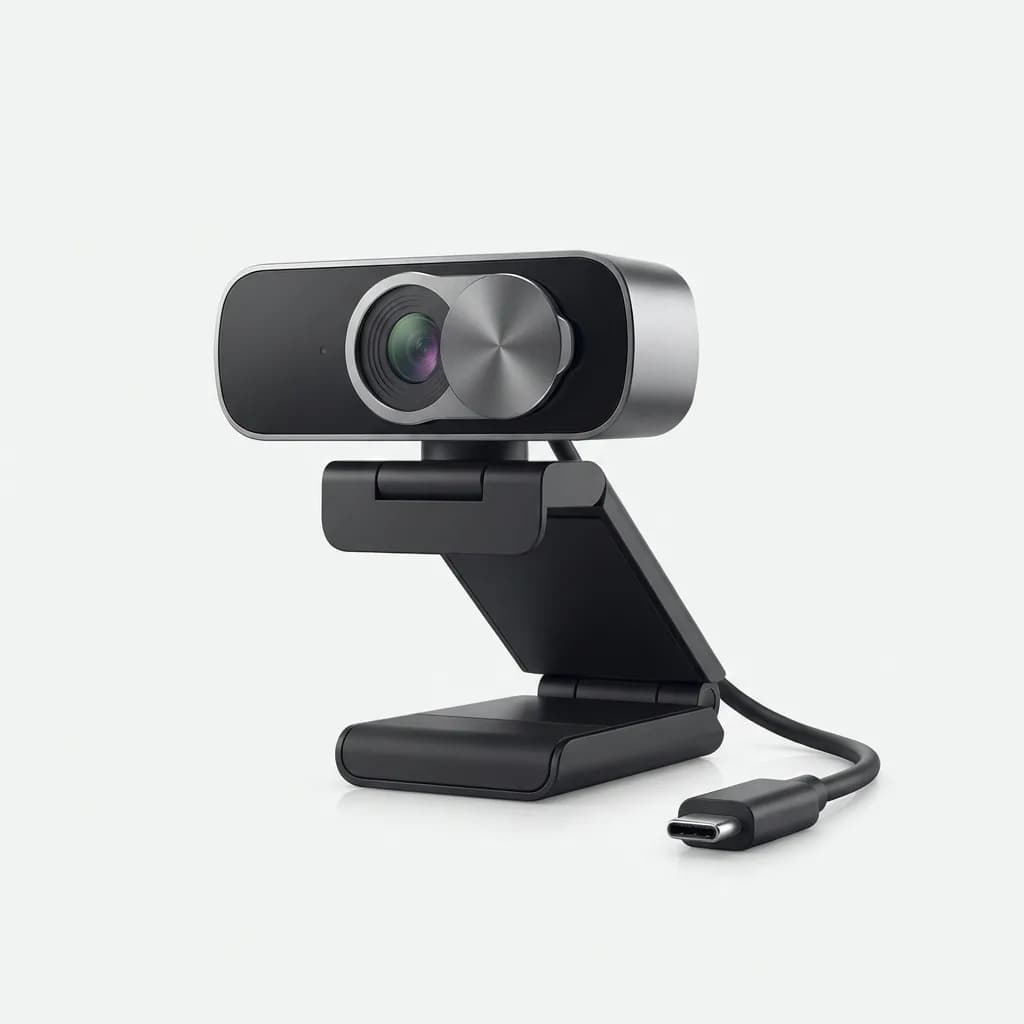
Dell UltraSharp 4K Webcam
Check current price
Magnetic-mount 4K webcam with AI auto-framing and metal lens cover. Ideal for multi-monitor setups and portable workstations.
Anker PowerConf C200: Best budget pick
The PowerConf C200 delivers solid 4K at a price point well below the flagship models. It's not as refined in low light, and the auto-focus can lag slightly when you move quickly, but for daytime calls in a reasonably lit room, it punches above its weight class.
The 95-degree field of view is wider than most, which can be a pro or con depending on your space. It shows more of your background, so you'll want a clean wall or decent setup behind you. The flip side is it works well for two people sharing one camera during collaborative calls.
Dual mics with noise cancellation handle room echo better than expected. The build quality is plastic but doesn't feel cheap. There's no companion app, which means fewer features but also zero software headaches. It works immediately on Windows, Mac, and ChromeOS. For a first upgrade from a laptop camera or a secondary setup in a guest room, the C200 is hard to beat at its price.
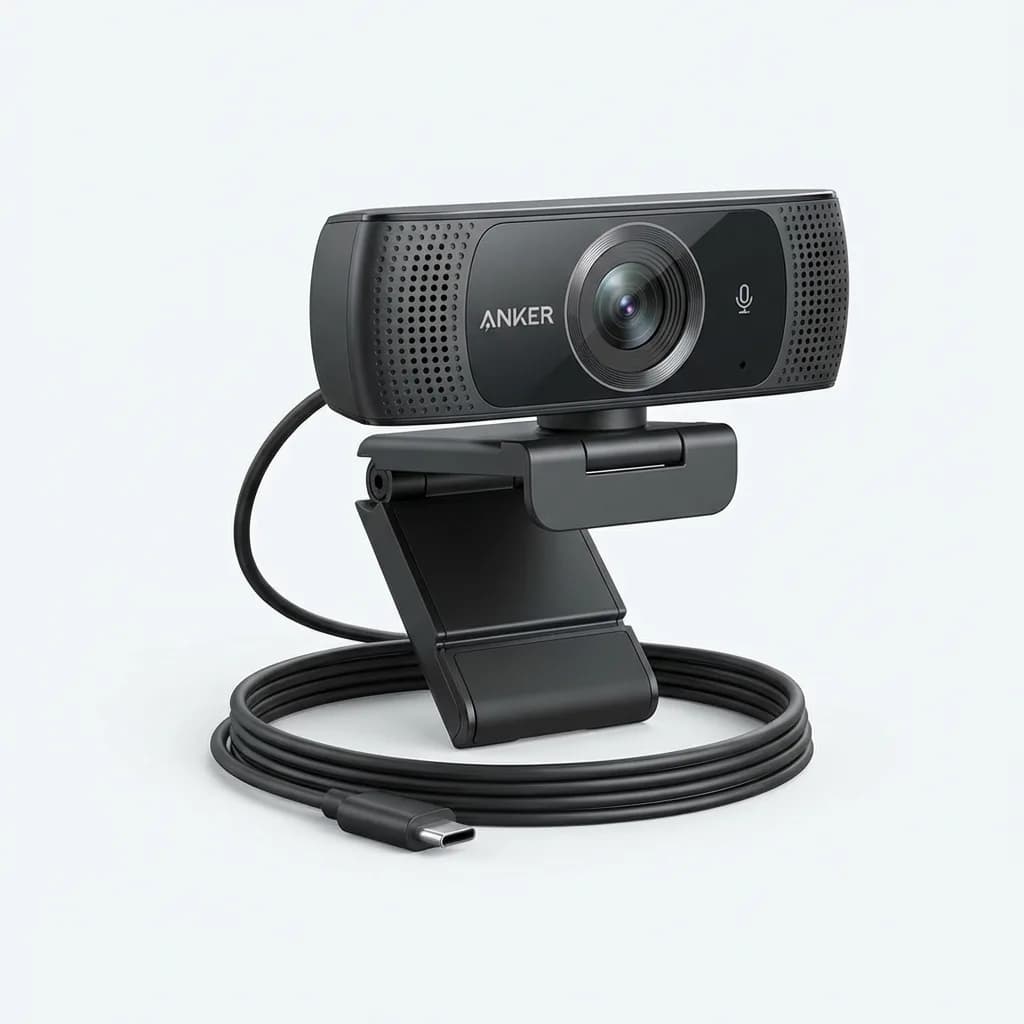
Anker PowerConf C200
Check current price
Budget-friendly 4K webcam with 95-degree field of view and dual noise-canceling mics. Solid daytime performance without premium features.
What about lighting and audio?
Even the best webcam can't fix bad lighting. If you're backlit by a window or relying on a single overhead bulb, your image will look flat or shadowy. A simple LED panel or ring light makes a bigger difference than upgrading from a $150 webcam to a $300 one.
Position your light source in front of you, slightly above eye level, and off to one side for depth. Avoid placing lights directly behind your monitor, which creates harsh shadows under your eyes. Diffused light from a softbox or bounced off a wall looks more natural than direct LED beams.
For audio, every webcam here has decent built-in mics, but none match a dedicated USB microphone or headset. If you're in back-to-back calls all day, invest in a real mic. Your colleagues will notice the upgrade faster than they'll notice better video.
How much should you spend on a webcam?
The sweet spot for most remote workers is $120 to $180. That range gets you true 4K, reliable auto-focus, and good color science without paying for features like tracking or extreme low-light performance. If you present on camera frequently, stand while you work, or record video for clients, the premium models justify their cost.
Budget options under $100 can work if your lighting is consistent and you're not picky about fine detail. But the sensor and lens quality drop off fast below that threshold. You'll deal with slower auto-focus, worse low-light handling, and less accurate colors.
Which webcam should you actually buy?
If you sit at a standard desk with decent lighting and want the best all-around option, grab the Logitech Brio 505. It's reliable, compact, and delivers clean 4K without extra setup.
For standing desks or dynamic presentations where you move around, the Insta360 Link 2 is worth the premium. The tracking is smooth, and gesture controls are genuinely useful once you learn them.
Low-light environments or creative work where color matters? The Elgato Facecam Pro gives you the best sensor and manual controls. Expect to spend time dialing it in, but the results are worth it.
Multi-monitor users or people who move between workstations should look at the Dell UltraSharp. The magnetic mount is simple and fast, and the image quality is solid.
On a budget or setting up a secondary space? The Anker PowerConf C200 gets you into 4K without the premium price. It won't wow you in dim light, but it's a huge step up from a laptop camera for daytime calls.
Pick based on your actual desk setup and how you use video daily, not just specs. A webcam that matches your workflow will make every call feel more professional without you thinking about the tech.
The Weekly Dispatch
Enjoying this article?
Subscribe and get our best gear picks delivered every Sunday morning.
Related Posts
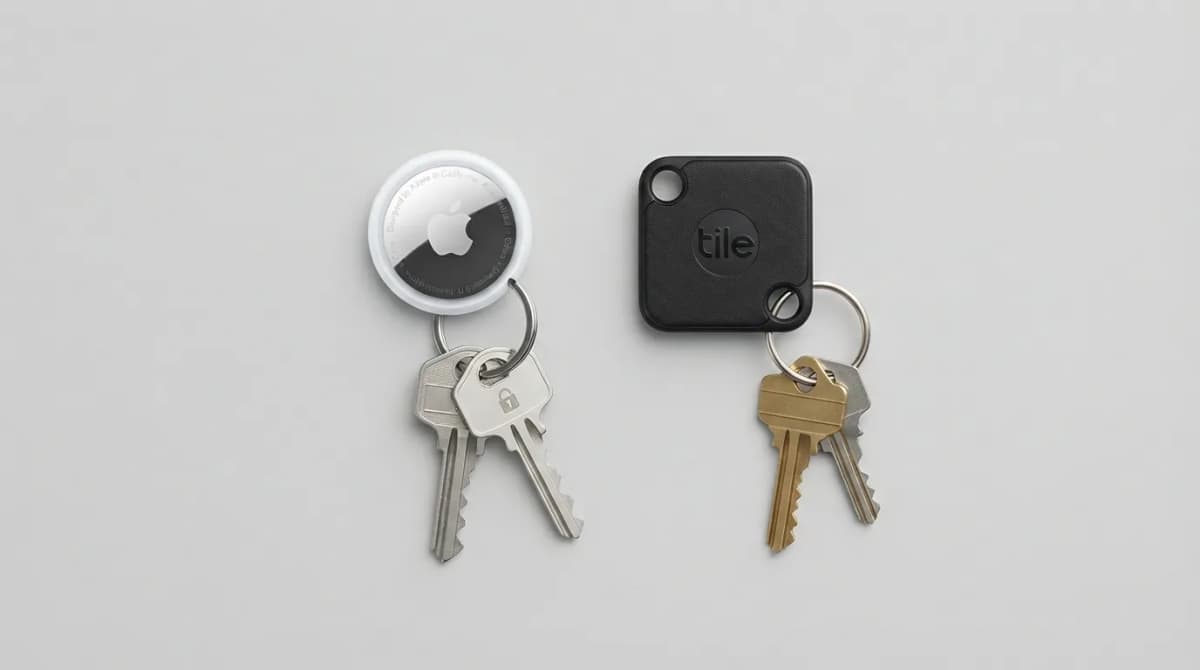
AirTag vs Tile Mate (2026): Which Key Tracker to Buy
Apple AirTag vs Tile Mate for keys: phone compatibility, range, battery and price compared from Apple and Tile maker pages, as of Oct 2026.
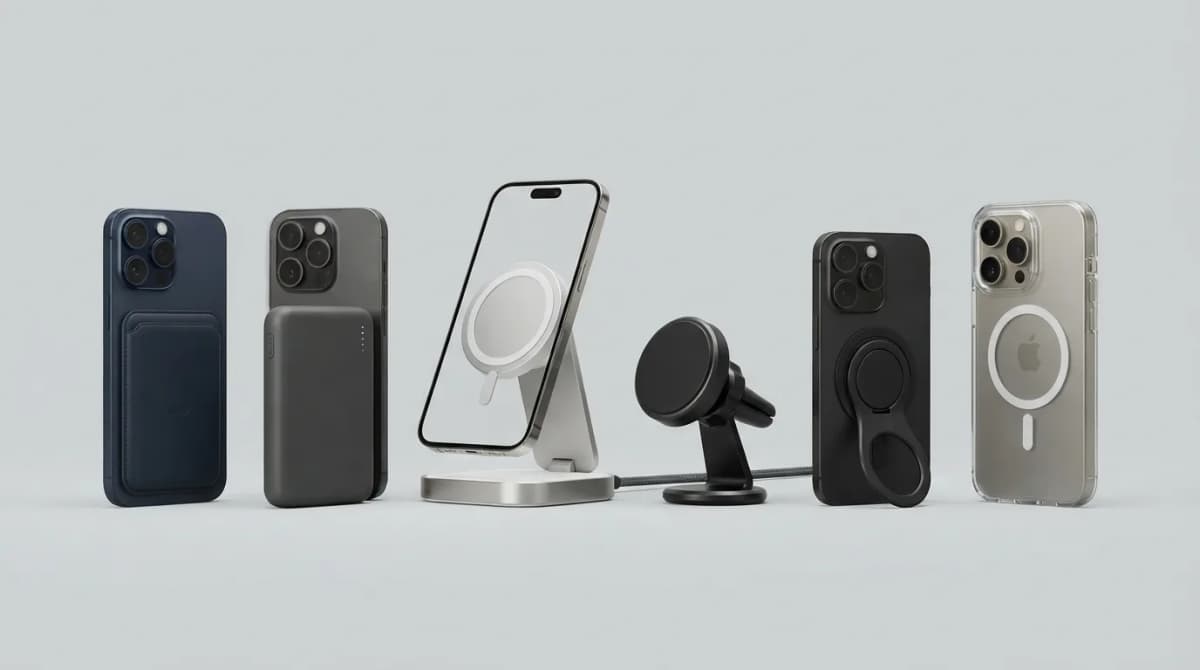
Best MagSafe Accessories for iPhone 18 Pro (2026)
MagSafe and Qi2 accessories for iPhone 18 Pro and Pro Max: wallets, power banks, a dock, car mount, grips, cases, a keyboard, a controller, an SSD and more, with maker specs and prices as of Oct 2026.
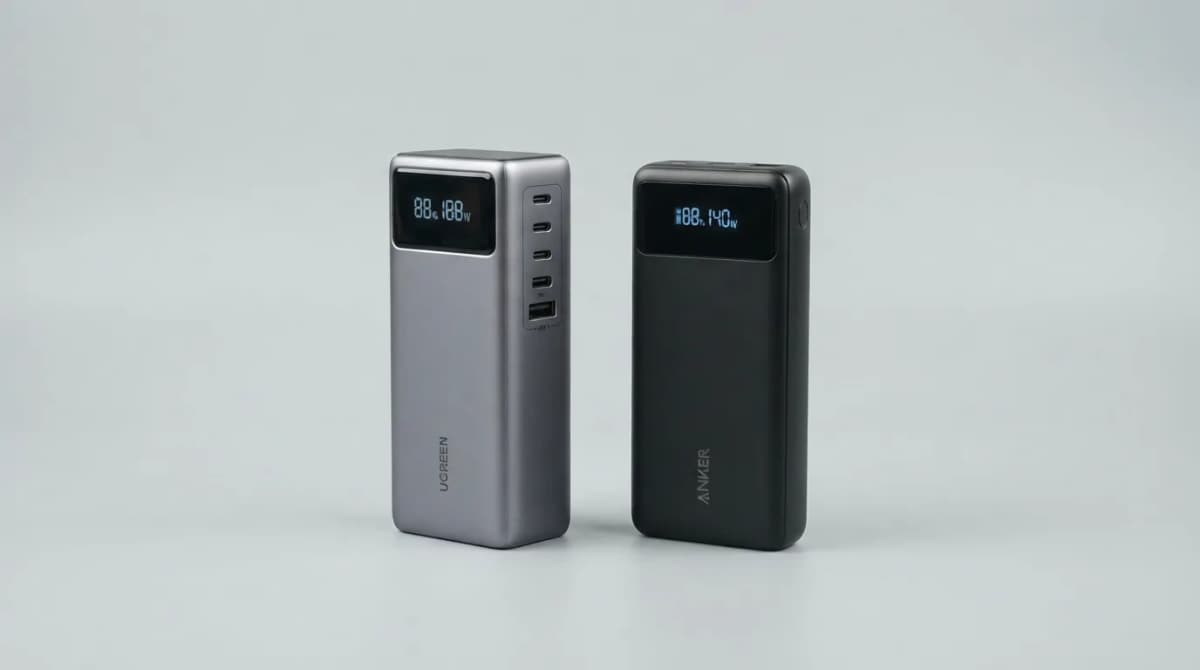
UGREEN Nexode 25000 vs Anker 737 Power Bank (2026)
UGREEN Nexode 25000mAh 200W vs Anker 737: two 140W laptop power banks compared on capacity, ports, recharge speed and weight from maker specs (Oct 2026).
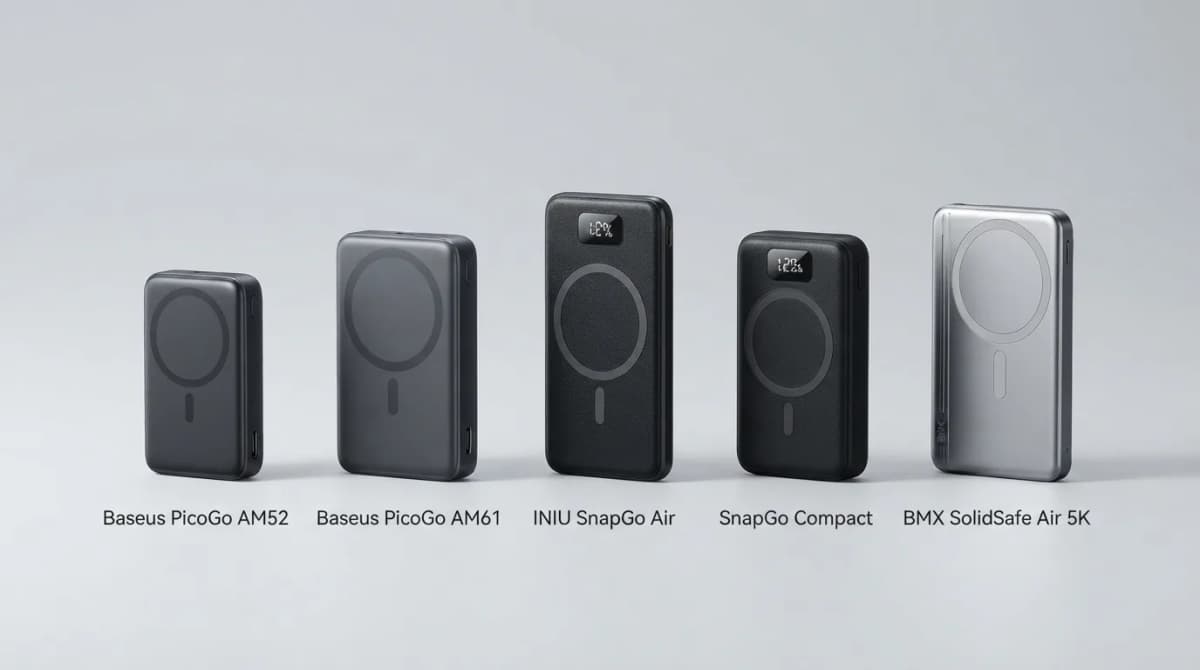
Best Qi2 Power Banks 2026 for iPhone and Android
The best Qi2 and Qi2.2 magnetic power banks for 2026: Baseus PicoGo AM52 and AM61, INIU SnapGo Air and SnapGo Compact, and BMX SolidSafe Air 5K. Prices at publish, Oct 2026.