How to Work Securely on Public WiFi
Public WiFi is convenient but risky. Learn what threats you face at coffee shops and airports, why VPNs matter, and practical habits that keep your data safe.
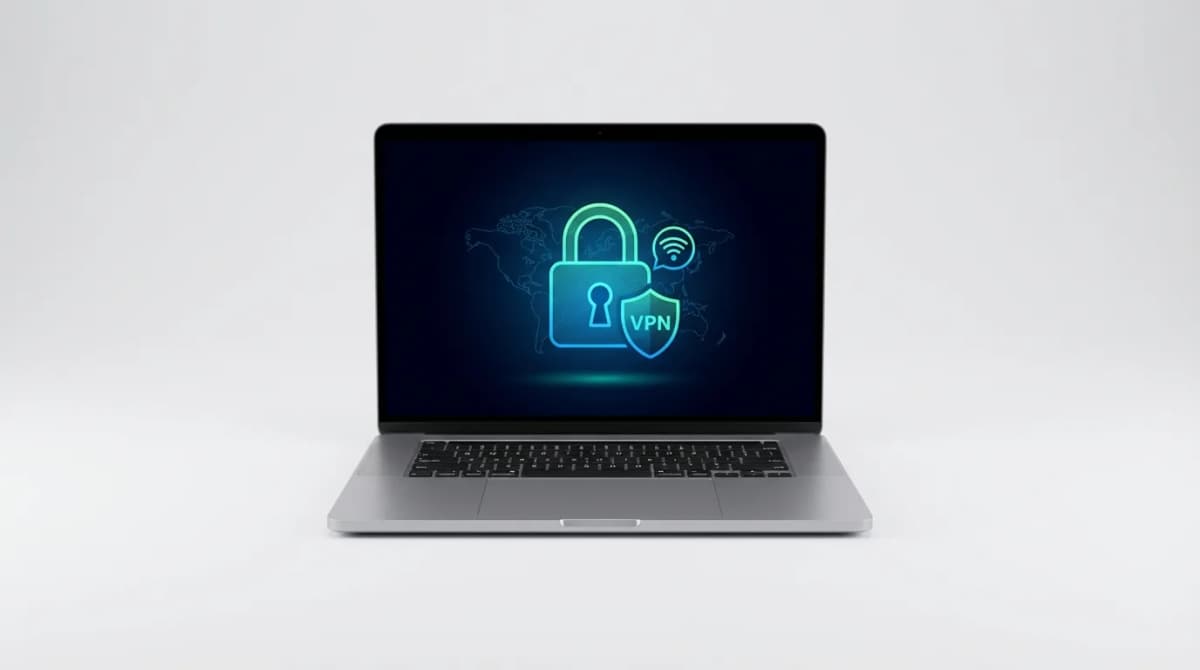
That coffee shop WiFi password written on a chalkboard seems harmless enough. You log in, fire up your laptop, and get to work. But between your device and that router sits an invisible minefield. Anyone with basic tools can intercept your traffic, steal passwords, or inject malware into your session.
Quick Picks
Our top recommendations at a glance:
- 1NordVPN Premium SubscriptionSee current price
- 2ExpressVPN SubscriptionSee current price
- 3
- 41Password Families SubscriptionSee current price
- 5
Public WiFi security is not about paranoia. It is about understanding what open networks expose and taking simple steps to protect yourself. The threats are real, but so are the solutions.
What Makes Public WiFi Dangerous
Public networks operate without encryption between your device and the router. That means everything you send travels in plain text through the air. Anyone within range can use packet sniffing tools like Wireshark to capture your data.
The most common attack is a man-in-the-middle (MITM) scenario. An attacker sets up a fake WiFi hotspot with a legitimate-sounding name like "Starbucks Guest" or "Airport Free WiFi." You connect, thinking it is the real network. Now every bit of data you send goes through the attacker's device first.
Even on legitimate public networks, other users can spy on your activity. Hackers use tools like Firesheep or SSLstrip to hijack your sessions. They can see which websites you visit, intercept login credentials sent over HTTP, and even inject malicious code into unencrypted pages.
Hotels and airports are particularly risky. These networks serve hundreds or thousands of people daily, many of whom have valuable business data on their devices. The WiFi infrastructure itself may be outdated, running old routers with known vulnerabilities.
Why HTTPS Is Not Enough
You might think HTTPS protects you completely. It encrypts data between your browser and the website, which is a huge improvement over plain HTTP. But it does not solve every problem.
HTTPS only protects the content of your communication, not the metadata. An observer can still see which domains you visit, how long you spend on each site, and how much data you transfer. For sensitive work, that metadata can reveal a lot.
Many apps and background services do not use HTTPS at all. Email clients, chat apps, and system updates might send data in the clear. Some websites still serve assets like images or scripts over HTTP, creating mixed content that attackers can exploit.
SSL stripping attacks can downgrade your connection from HTTPS to HTTP without you noticing. The attacker intercepts your initial request and replaces secure links with insecure ones. Unless you manually check the address bar for the padlock icon on every page, you might not catch it.
DNS queries also leak information. When you type a website address, your device asks a DNS server to translate it into an IP address. That request is usually unencrypted, revealing your browsing activity to anyone monitoring the network.
The VPN Solution
A VPN creates an encrypted tunnel between your device and a remote server. All your traffic goes through this tunnel before reaching the internet. To anyone watching the public WiFi network, your activity looks like gibberish.
The VPN encrypts everything, not just web browsing. Email, chat apps, file transfers, system updates - all protected. It also hides your real IP address, making it harder for websites and advertisers to track you.
Not all VPNs are equal. Free VPNs often make money by logging your activity and selling data to advertisers. Some inject ads into your browsing sessions. Others have weak encryption or leak your real IP address.
We recommend paid VPNs with strong privacy policies. Look for services that use modern protocols like WireGuard or OpenVPN, offer a kill switch to block internet access if the VPN drops, and have been independently audited.

NordVPN Premium Subscription
See current price
Trusted VPN with 5,500+ servers in 60 countries, WireGuard protocol support, verified no-logs policy. Includes threat protection and split tunneling features for flexible security.
Connection speed matters for real work. A VPN adds encryption overhead, which slows down your connection. The best services minimize this impact with fast servers and efficient protocols. Test different server locations to find the fastest option.
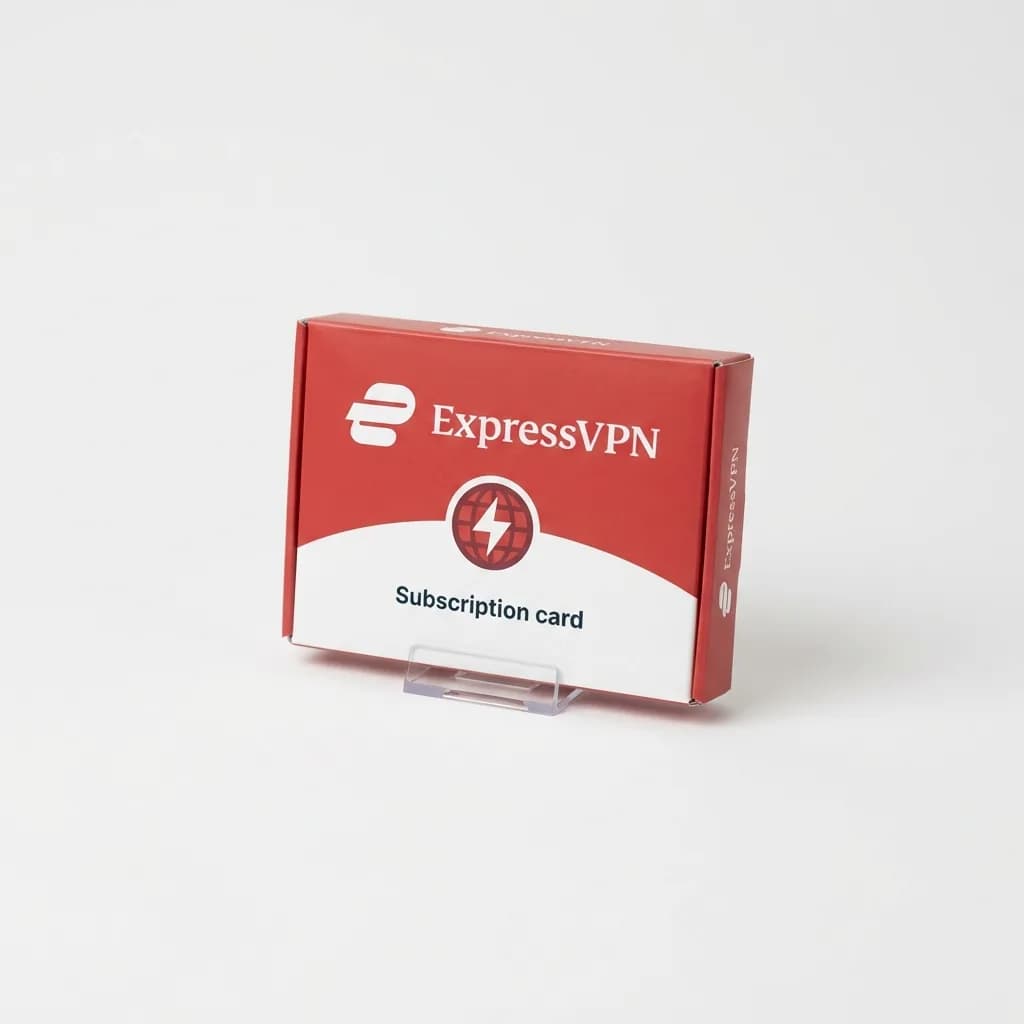
ExpressVPN Subscription
See current price
Premium VPN known for fast speeds using Lightway protocol. 160 server locations across 94 countries, automatic leak protection, and split tunneling for optimized performance.
Configure Your Device Before You Travel
Waiting until you are at the airport to set up security is too late. Configure your devices at home on a trusted network.
Turn off automatic WiFi connections. Your device tries to reconnect to familiar networks by broadcasting their names. Attackers can create fake networks with those names to trick your device into connecting. Disable auto-join for all networks except your home WiFi.
Enable your firewall. Both Windows and macOS have built-in firewalls that block unauthorized incoming connections. Turn them on and set them to block all incoming connections when on public networks.
Disable file sharing and AirDrop. These features are convenient at home but dangerous on public WiFi. Turn off network discovery, file sharing, and printer sharing before connecting to unfamiliar networks.
Update everything before you leave. Install the latest OS updates, app updates, and security patches. Attackers exploit known vulnerabilities, and updates close those holes.
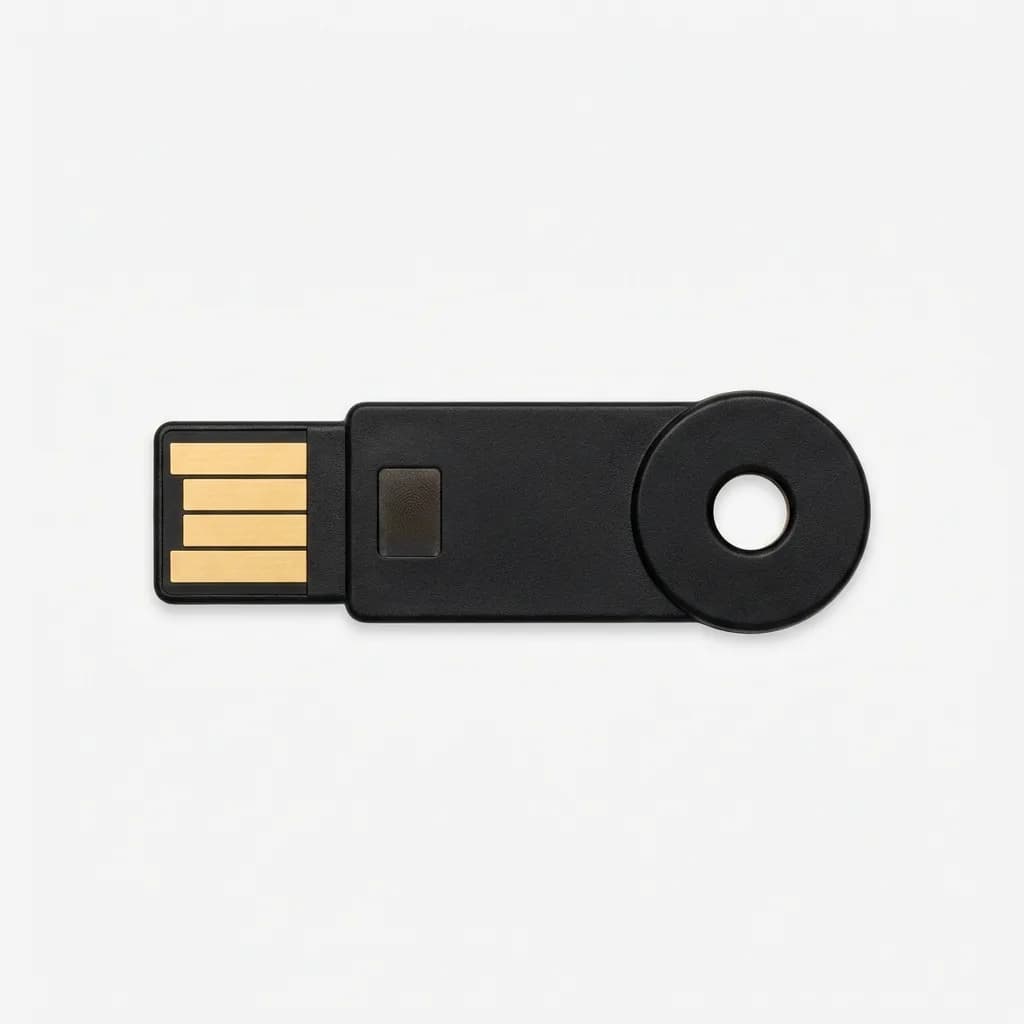
YubiKey 5 NFC Security Key
$55
Hardware authentication key supporting FIDO2, U2F, smart card, and OTP. Tap-to-authenticate prevents phishing attacks and password theft. Works with USB-A and NFC for mobile devices.
Safe Browsing Habits on Public Networks
Even with a VPN, adopt defensive browsing habits. Always check for HTTPS before entering sensitive information. Look for the padlock icon in the address bar and click it to verify the certificate.
Avoid online banking and shopping on public WiFi if possible. If you must access financial accounts, use your phone's cellular connection instead of WiFi. A mobile hotspot from your phone creates a much safer connection than open WiFi.
Use a password manager with strong master password protection. Typing passwords manually risks keylogger attacks if your device is compromised. A password manager autofills credentials only on legitimate sites, preventing phishing.
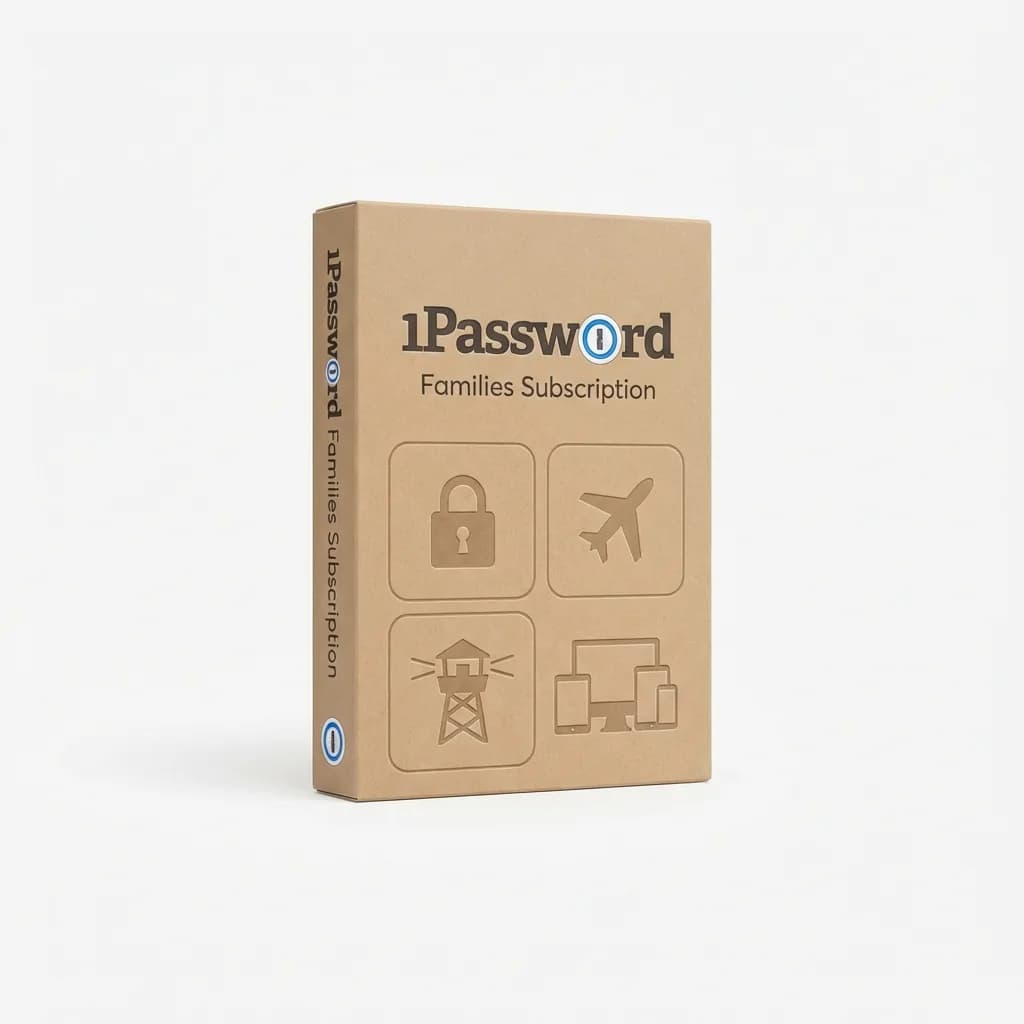
1Password Families Subscription
See current price
Premium password manager with end-to-end encryption, Travel Mode to hide sensitive vaults at borders, and Watchtower alerts for compromised passwords. Supports unlimited devices and secure document storage.
Watch for fake login pages. Attackers sometimes create convincing replicas of popular websites to steal credentials. Check the URL carefully before logging in. Bookmark important sites and access them only through bookmarks, never by clicking links or typing URLs.
Clear your browsing history and cache after using public WiFi. This removes temporary files that might contain sensitive information. Better yet, use private browsing mode for your entire session.
What About Mobile Devices
Phones and tablets face the same risks as laptops on public WiFi. Install a VPN app and enable it before connecting to any public network.
Mobile devices have an additional vulnerability: they constantly scan for familiar WiFi networks. This broadcasts the names of networks you have used before, letting attackers build a profile of your movements and habits.
Forget public WiFi networks after using them. Do not let your phone save the network. This prevents automatic reconnection and stops your device from broadcasting those network names later.
Use cellular data when possible. A 4G or 5G connection from your carrier is much more secure than public WiFi. Modern phones use encrypted connections to cell towers, making interception extremely difficult.
Enable automatic updates over WiFi only at home. In your phone's settings, restrict app updates and OS updates to trusted networks. This prevents attackers from pushing malicious updates through compromised WiFi.
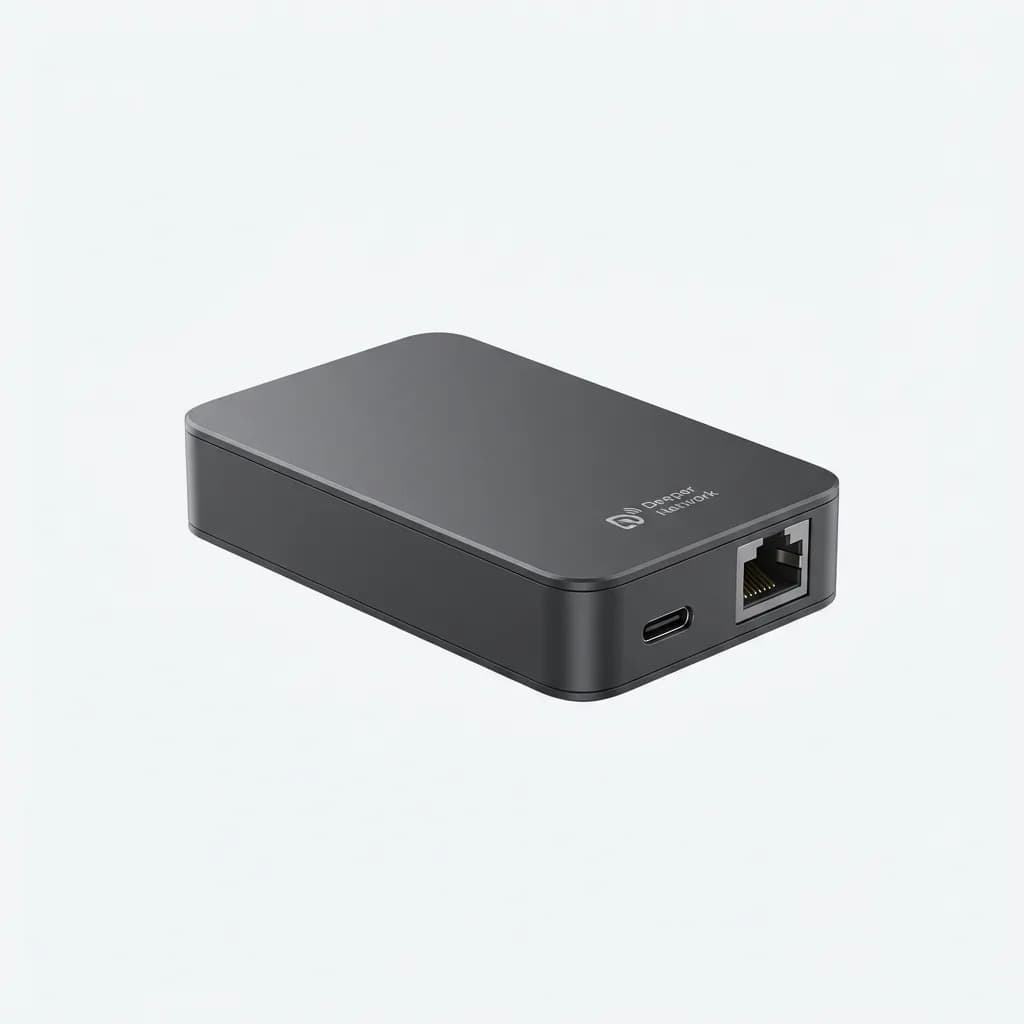
Deeper Connect Pico Decentralized VPN Device
$199
Hardware VPN device creating secure tunnel for all connected devices. No subscription fees, blockchain-based routing, AdGuard filtering. Pocket-sized at 3.9 x 2.2 inches with USB-C power.
Two-Factor Authentication Saves You
Even if an attacker steals your password on public WiFi, two-factor authentication (2FA) stops them from accessing your accounts. They would need your phone or hardware key to complete the login.
SMS-based 2FA is better than nothing but has weaknesses. Attackers can intercept text messages or use social engineering to hijack your phone number. App-based 2FA through Google Authenticator or Authy is more secure.
Hardware security keys provide the strongest protection. They use cryptographic challenges that cannot be phished or intercepted. Even if you enter your password on a fake login page, the attacker cannot complete authentication without your physical key.
Enable 2FA on every account that supports it, especially email, banking, social media, and work accounts. Use different methods for different accounts as a backup strategy.
When to Skip Public WiFi Entirely
Some situations are too risky for public WiFi, even with a VPN. Avoid accessing health records, tax documents, or legal files on unfamiliar networks. The sensitivity of the data justifies extra caution.
If you are traveling internationally, government surveillance is a concern. Some countries monitor all internet traffic, and VPNs may be restricted or illegal. Research local laws before relying on VPN protection abroad.
Conferences and trade shows have notoriously insecure WiFi. Thousands of people connect to overwhelmed networks, and attackers specifically target these events. Use your phone's hotspot instead or wait until you return to your hotel.
Financial transactions warrant extra care. Submitting credit card information, transferring money, or accessing investment accounts should wait for a secure connection. The few minutes you save are not worth the risk.
Setting Up a Personal Hotspot
Your phone's cellular connection can create a private WiFi network for your laptop and other devices. This mobile hotspot is far more secure than public WiFi because it is encrypted and only you have the password.
Enable hotspot mode in your phone's settings, set a strong password using letters, numbers, and symbols, and connect your laptop as you would to any WiFi network. Your laptop's traffic now goes through your phone's cellular connection.
Watch your data usage. Video calls, cloud uploads, and software updates consume data quickly. Most carrier plans have data caps, and overage charges add up fast. Disable automatic updates and avoid streaming video when using your hotspot.
Battery life suffers when running a hotspot. Your phone works harder to maintain the WiFi signal and cellular connection simultaneously. Bring a power bank or portable charger to keep your phone alive through a full workday.
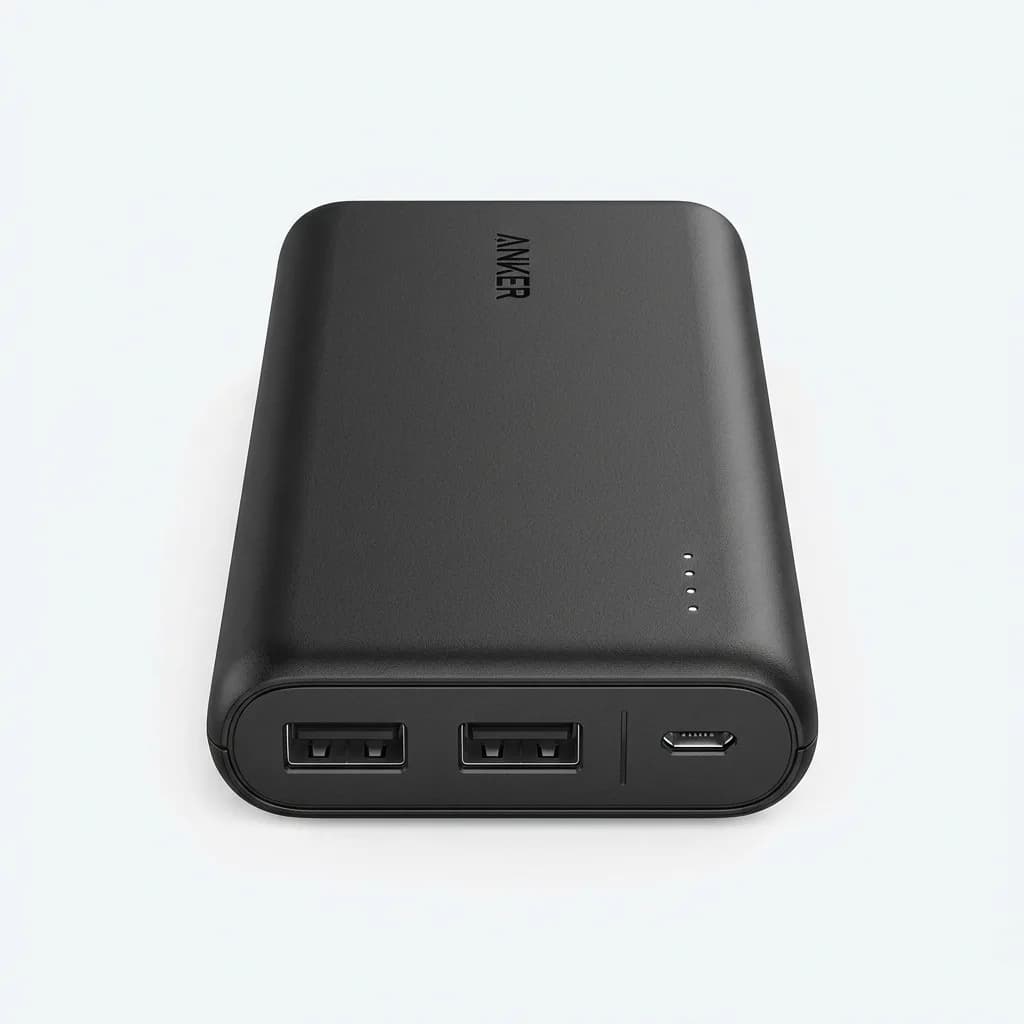
Anker PowerCore 20000mAh Power Bank
$50
High-capacity portable charger with 20,000mAh for multiple device charges. Dual USB ports deliver 4.8A total output, PowerIQ fast charging, weighs 12.5 oz. Essential for extended hotspot use.
Real-World Security Tradeoffs
Perfect security is impossible. Every protective measure adds friction, slows you down, or costs money. You have to balance risk against convenience based on what you are doing.
Checking email at a coffee shop is lower risk than accessing your bank account. Reading news articles is safer than downloading files. Understand the sensitivity of your activity and adjust your precautions accordingly.
VPN speed overhead is noticeable. A 10-20% slowdown is typical, more on congested servers. For video calls or large file transfers, that lag becomes frustrating. Some people disable the VPN temporarily for specific tasks, accepting the risk for better performance.
Corporate VPNs sometimes conflict with commercial VPNs. Your employer's security policies might block third-party VPN connections. Check with IT before installing your own VPN software on a work device.
The strongest security practices take time. Verifying certificates, checking URLs, managing multiple authentication methods - all this slows down your workflow. Find a sustainable routine that you will actually follow every time.
What We Do on Public WiFi
We connect to NordVPN before opening any apps or websites. The VPN client has a kill switch enabled, so if the connection drops, all internet access stops immediately until the VPN reconnects.
Browser bookmarks take us directly to important sites, avoiding the risk of typos leading to phishing pages. HTTPS Everywhere extension forces encrypted connections whenever possible.
Password manager autofills credentials only on verified sites. We never type passwords manually on public WiFi. If the password manager does not recognize the site, something is wrong.
Mobile hotspot is the default for anything financial. Banking, bill payments, and online purchases wait until we can use cellular data or get back to a trusted network.
We forget the public WiFi network before leaving. The phone does not get to remember that coffee shop or airport. Next time we visit, we treat it as a new, untrusted network.
These habits take 30 seconds to implement and prevent hours of cleanup from a compromised account. Public WiFi is too convenient to avoid entirely, but too dangerous to use carelessly. The middle ground is encrypted connections, defensive browsing, and knowing when to wait for a safer network.
The Weekly Dispatch
Enjoying this article?
Subscribe and get our best gear picks delivered every Sunday morning.
Related Posts
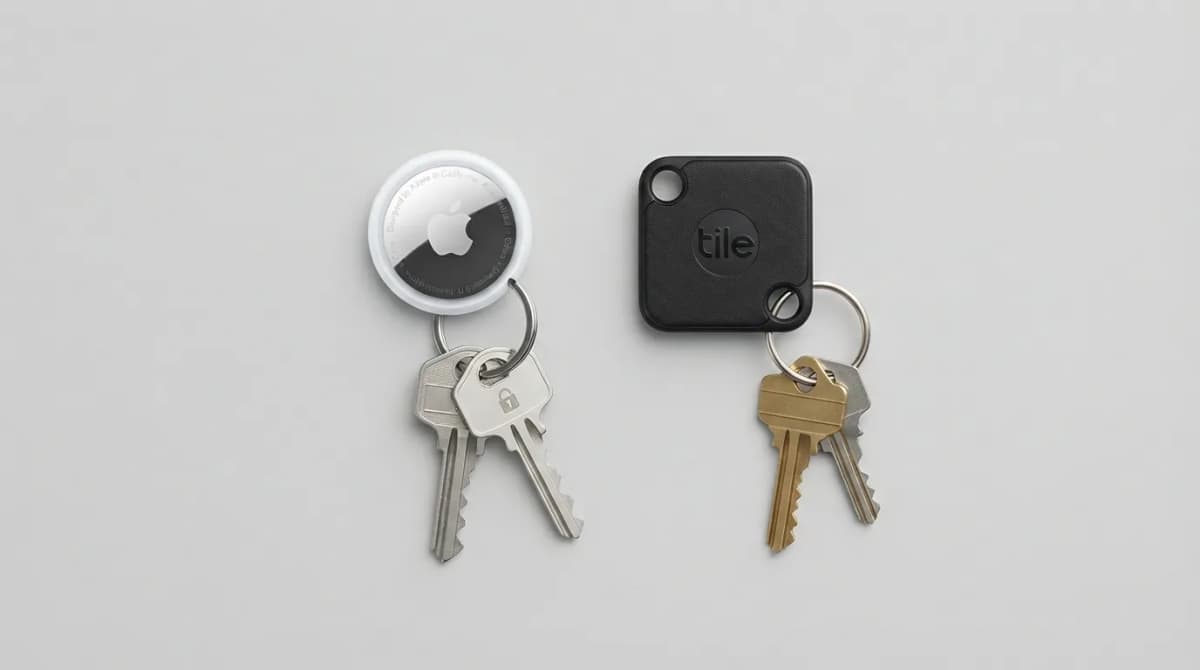
AirTag vs Tile Mate (2026): Which Key Tracker to Buy
Apple AirTag vs Tile Mate for keys: phone compatibility, range, battery and price compared from Apple and Tile maker pages, as of Oct 2026.

Best MagSafe Accessories for iPhone 18 Pro (2026)
MagSafe and Qi2 accessories for iPhone 18 Pro and Pro Max: wallets, power banks, a dock, car mount, grips, cases, a keyboard, a controller, an SSD and more, with maker specs and prices as of Oct 2026.
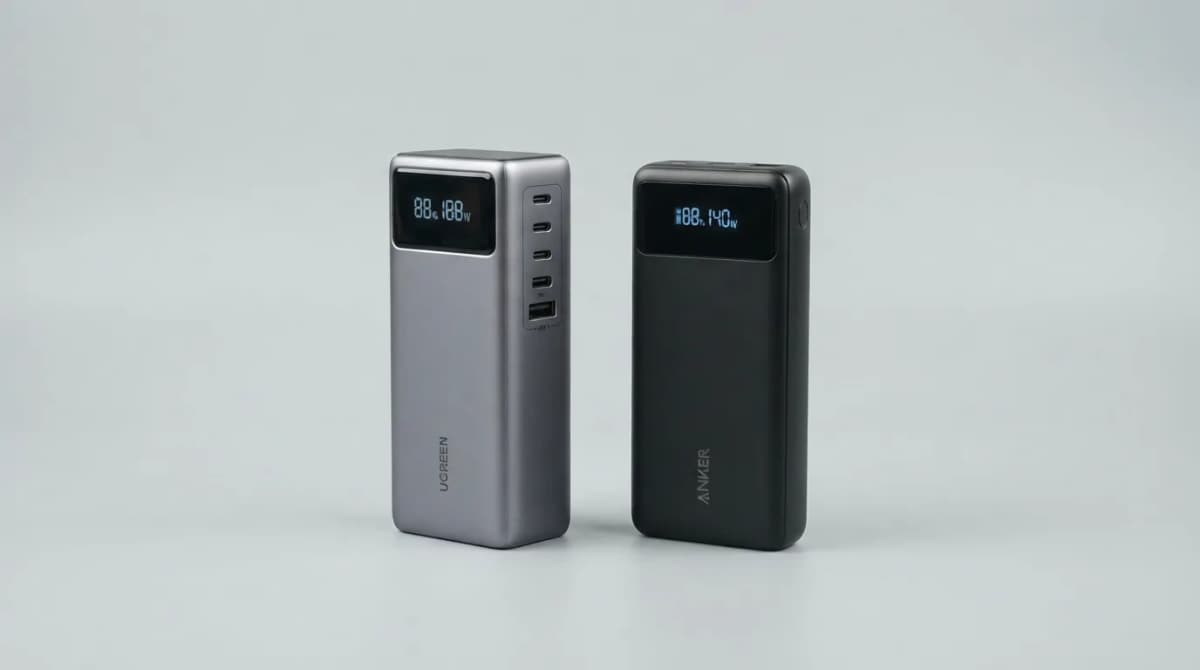
UGREEN Nexode 25000 vs Anker 737 Power Bank (2026)
UGREEN Nexode 25000mAh 200W vs Anker 737: two 140W laptop power banks compared on capacity, ports, recharge speed and weight from maker specs (Oct 2026).
Best Qi2 Power Banks 2026 for iPhone and Android
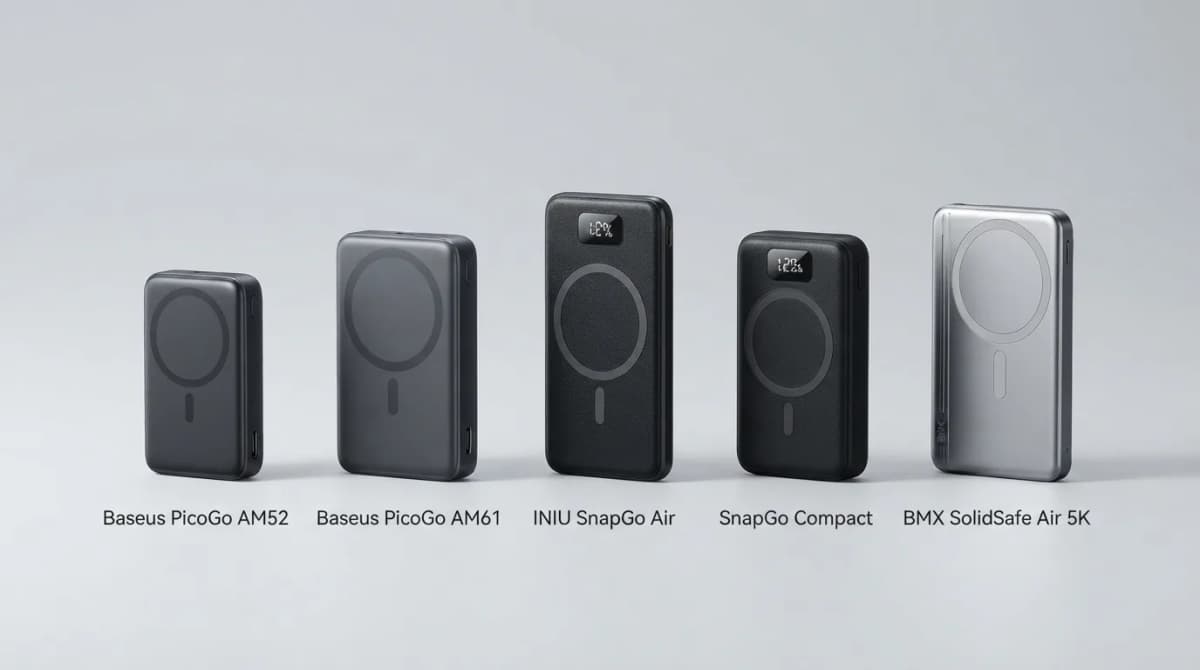
The best Qi2 and Qi2.2 magnetic power banks for 2026: Baseus PicoGo AM52 and AM61, INIU SnapGo Air and SnapGo Compact, and BMX SolidSafe Air 5K. Prices at publish, Oct 2026.